
How to add the Privacy Center to Shopify customer accounts
Overview
The Privacy Center is a page Pandectes adds to Shopify customer accounts. When a shopper is signed in to their account, they can open it to check their cookie consent, change it, and send a data request (export, update, or erase their data) without contacting you.
You add the page in the Shopify customer accounts editor, choose which cards it shows, and link it from the account menu. This article walks you through each step.
Before you start
- Your store uses Shopify customer accounts, the current version. The Privacy Center does not work with legacy (classic) customer accounts.
- Pandectes GDPR Compliance is installed.
- Customer data requests are set up in the app if you want to show the requests card. See Customer Data Requests.
What customers see on the page
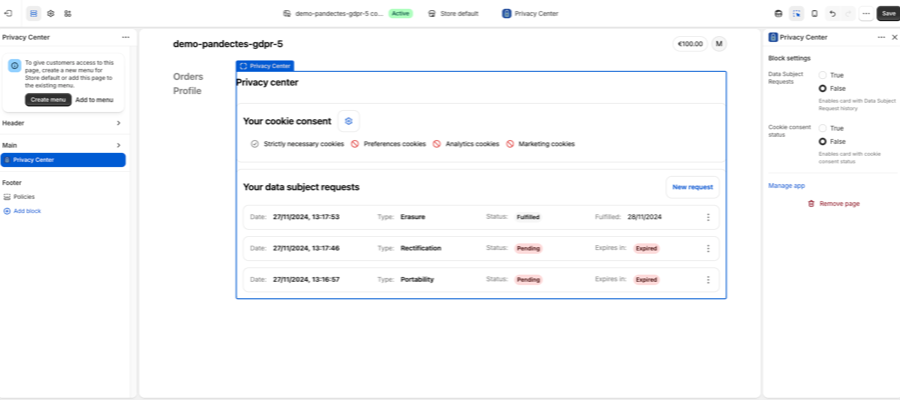
The page is titled Privacy center and has two cards.
Card | What it shows | What customers can do |
|---|---|---|
Your cookie consent | The status of each category: Strictly necessary cookies, Preferences cookies, Analytics cookies, and Marketing cookies | Select the settings (gear) icon to open Change consent preferences, turn categories on or off, and select Save preferences |
Your data subject requests | Every request the customer sent, with Date, Type, Status, and either Expires in or Fulfilled | Select New request, choose a Type (Portability, Rectification, or Erasure), add a Comment for rectification, and select Submit request. The menu (⋮) on each request has Cancel request |
Requests sent from the Privacy Center reach the same Customer data requests dashboard as requests from your storefront page, so you handle them the same way.
The page texts are shown to customers in the language of their account.
Step 1: Open the customer accounts editor
- In your Shopify admin, go to Settings > Customer accounts.
- Select Customize to open the customer accounts editor.
Step 2: Open the Privacy Center page
- In the page selector at the top center of the editor, open the dropdown.
- Select Privacy Center.
The editor shows a preview of the page with the Privacy Center block selected.
Step 3: Choose which cards to show
Select the Privacy Center block. In Block settings on the right, set each option:
Setting | True | False |
|---|---|---|
Data Subject Requests | Shows the Your data subject requests card | Hides the card |
Cookie consent status | Shows the Your cookie consent card | Hides the card |
Leave both on True to give customers the full Privacy Center.
Step 4: Add the page to the account menu
Customers can only reach the page from a menu link. In the left sidebar, the editor shows: "To give customers access to this page, create a new menu for Store default or add this page to the existing menu."
- Select Add to menu to add the Privacy Center to the menu you already use.
- Select Create menu if your customer accounts do not have a menu yet.
Give the link the name you want customers to see, for example Privacy Center.
Step 5: Save
Select Save in the top right corner of the editor. Then sign in to your store as a test customer and open the new menu link to check the page.
Troubleshooting
Privacy Center is missing from the page selector
- Check that Pandectes GDPR Compliance is installed and up to date.
- Check that your store uses the current customer accounts and not legacy customer accounts.
- Reload the editor.
Customers cannot find the page
The page is only reachable from a menu link. Go back to Step 4, add it to the menu, and select Save.
A card is missing from the page
Open the Privacy Center block in the editor and set that card's option in Block settings to True, then save.
Related articles
Updated on: 20/10/2026
Thank you!