
Integrations Setup Guide
Overview
Integrations you turn on in Apps > Pandectes GDPR > Integrations work through the Pandectes app embed, with no code changes.
Follow the Manual setup below if any of these apply:
- You load these services yourself in
theme.liquid. - You load them from Google Tag Manager.
- You use apps that do not load as an app embed (legacy apps).
- An integration does not behave as expected, for example when your Google tags are not entered in the Google Consent Mode integration.
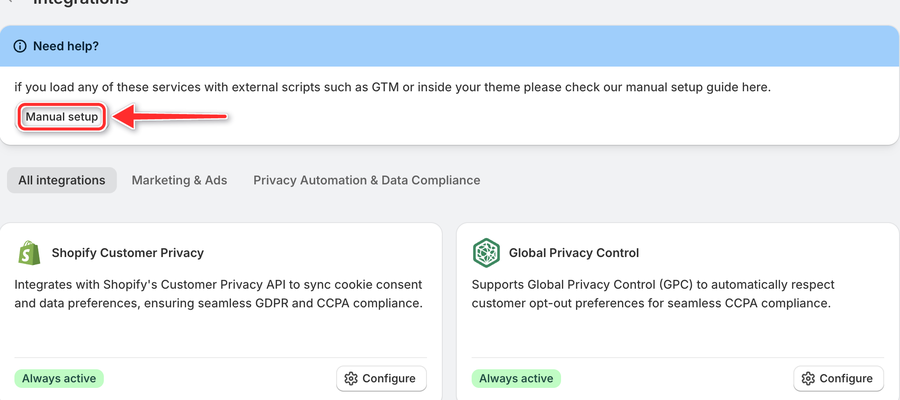
The Need help? box at the top of the Integrations page links to this guide through its Manual setup button.
1. Manual Setup
The manual setup includes injecting our pandectes-rules.js script on top of your theme.
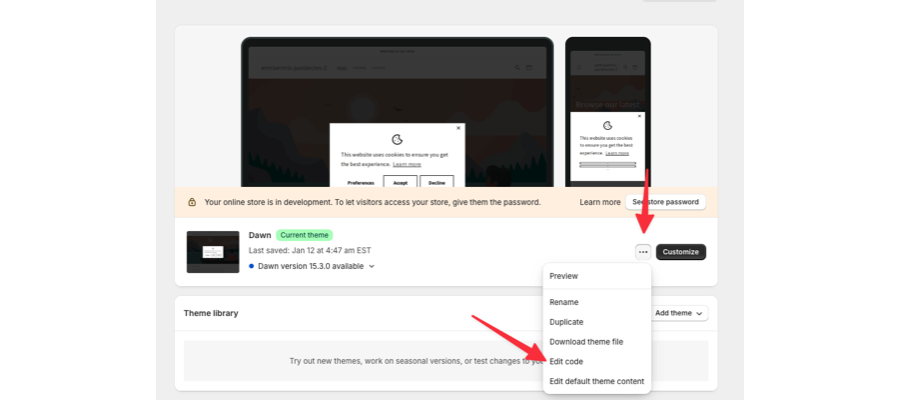
- In Shopify Admin, go to Online Store > Themes. Next to your live theme, click the ... button and select Edit code.
- On the left side, under the Layout folder, open the theme.liquid file.
- Just after the opening
<head>tag, paste this:
<!-- Pandectes Rules Manual Setup -->
<script src="{{ 'pandectes-rules.js' | file_url }}"></script>
- Click Save.
2. Test Manual Setup
Follow the steps below to check if the pandectes-rules.js script is properly loaded on your Shopify store:
2.1 Steps
- Open Your Shopify Store's Website
Navigate to your live Shopify store where the script should be installed.
- Open Developer Tools
On Google Chrome
- Right-click anywhere on the page and select Inspect.
- Alternatively, press
Ctrl + Shift + I(Windows) orCmd + Option + I(Mac) to open Developer Tools.
- Navigate to the Console Tab
Click on the Console tab within the Developer Tools panel. This is where JavaScript logs and errors will appear.
- Run the Following Snippet in the Console
In the console, type the following code snippet and press Enter:
const scriptPath = "files/pandectes-rules.js";
const scripts = Array.from(document.getElementsByTagName("script"));
const scriptLoaded = scripts.some(script => script.src.includes(scriptPath));

if (scriptLoaded) {
   console.log(`Pandectes Rules script is correctly loaded!`);
} else {
   console.log(`Pandectes Rules script is NOT loaded.`);
}
- Interpret the Results
If the script is correctly loaded, you will see the message:
Pandectes Rules script is correctly loaded!If the script is not loaded, you will see the message:
Pandectes Rules script is NOT loaded.2.2 Additional Notes
- Ensure that the script is added after the opening
<head>tag of your Shopify theme. - If the script is not loaded, check your theme files for the correct script injection, especially if there are issues with the URL or timing of the script loading.
3. Need help?
If you still have issues with the Integrations of our app and you need any assistance, please reach out to our support team via live chat from inside the app or by email at [email protected]
Updated on: 27/10/2026
Thank you!