
How to connect Claude to Pandectes
Overview
This guide connects Claude to your store through the Pandectes AI assistants connector. After that you can ask Claude about your cookie banner, your latest cookie scan, your consent rates and your banner languages. Claude can only read: it can't change settings or see customer data.
There are two ways to connect, depending on the Claude app you use:
- claude.ai and Claude Desktop: add Pandectes as a custom connector and approve it with your key.
- Claude Code: add Pandectes with one command that includes your key.
For what the connector does and how to cut access, see AI assistants connector: ask Claude or ChatGPT about your privacy setup.
Before you start
- Your Pandectes plan is Plus or higher.
- You have a Claude account. If you don't see Add custom connector in Claude, your Claude plan may not include custom connectors, or your organization's admin has to add the connector for you.
Step 1: Generate your store key
- In Shopify Admin, go to Apps > Pandectes GDPR Compliance > Integrations.
- Open the AI assistants tab and click Set up on the Claude card.
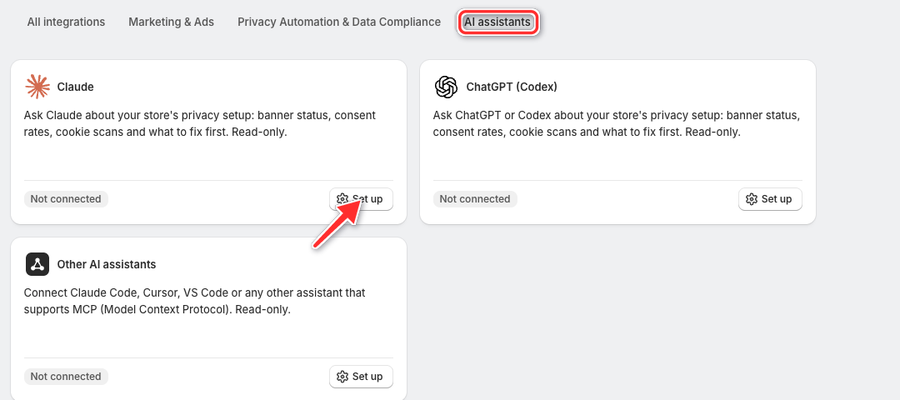
- Under Store key, click Generate key.
- Click the eye icon (Show key) to see the key, then click Copy.
You can show the key for 10 minutes only. After that the page shows just its last four characters, and you need to generate a new one if you lost it.
Keep this page open: you also need the Connector URL shown under Connect Claude.
Step 2: Connect claude.ai or Claude Desktop
- In Claude, go to Settings > Connectors and click Add custom connector.
- Enter a name, for example
Pandectes, and paste the Connector URL from the Pandectes page. Leave the advanced settings empty. - Click Add, then click Connect next to the new connector.
- A Connect Claude to Pandectes page opens. Paste your key in Pandectes key and click Approve.
- You are sent back to Claude, and the connector shows as connected.
A connector you add on claude.ai is also available in Claude Desktop with the same account, and the other way around.
Back in Pandectes, the Claude card now shows Connected, and Claude appears under Connected assistants. Pandectes also emails your store's address about the new connection.
Step 2 (alternative): Connect Claude Code
Claude Code sends your key with every request, so it doesn't use the Connect to Pandectes page.
- On the Claude page in Pandectes, copy the command under Claude Code (replace YOUR_STORE_KEY with your key). It already contains your connector URL and looks like this:
claude mcp add --transport http pandectes CONNECTOR_URL --header "Authorization: Bearer YOUR_STORE_KEY"- Replace
YOUR_STORE_KEYwith your key. Pandectes never fills it in for you. - Run the command in your terminal.
- Start Claude Code and type
/mcpto check that pandectes is connected.
Claude Code doesn't appear under Connected assistants, because it doesn't sign in through the Connect page. Under Store key you see Also used directly, without the sign-in page and when the key was last used.
Step 3: Ask Claude
Start a new chat and ask, for example:
- "Is my cookie banner showing?"
- "How many cookies are uncategorized in my latest scan?"
- "What were my consent rates in the last 30 days?"
On claude.ai and Claude Desktop, make sure the Pandectes connector is turned on for the chat. Claude may ask for your permission the first time it uses a Pandectes tool.
Disconnect Claude
On the Claude page in Pandectes:
- To remove one connection, click Disconnect next to it under Connected assistants and confirm. Your key keeps working.
- To stop every connection made with the key, including Claude Code, click Revoke key and confirm.
You can also remove the connector in Claude under Settings > Connectors, or remove it from Claude Code with claude mcp remove pandectes. This doesn't revoke the key in Pandectes.
Troubleshooting
- "This key is not valid or was revoked." Check that you copied the whole key, starting with
pdx_mcp_. If you generated a new key or revoked it, the old one no longer works: generate a new key and connect again. - "Connecting AI assistants needs a paid Pandectes plan (Plus or higher)." Upgrade your Pandectes plan, then connect again.
- "This sign-in took too long." The Connect to Pandectes page waits 15 minutes. Go back to Claude and click Connect again.
- "This key can't be shown any more." The 10 minutes to show the key have passed. Click Generate new key and copy the new one. This disconnects anything that used the old key.
- Claude stopped answering after months without use. A connection that isn't used for a year has to be approved again. Click Connect in Claude and paste your key.
Related articles
- AI assistants connector: ask Claude or ChatGPT about your privacy setup
- How to connect ChatGPT and Codex to Pandectes
- How to connect another AI assistant to Pandectes
Updated on: 11/11/2026
Thank you!