
Integration with Elevar Tag Management Suite
Overview
This article is for Shopify merchants who use Pandectes GDPR Compliance for their cookie banner and also use, or want to use, Elevar Tagging and Tracking Management.
Elevar makes sure that the tags in your Google Tag Manager container fire only after visitors have given the right permissions. Pandectes collects that consent.
1. Use an opt-in consent model
Your banner must block all but strictly necessary cookies until the visitor decides. In Pandectes, open Cookie banner and check the consent model shown under Banner is enabled (for example Strict opt-in). To change it per region, follow Consent Model & Regions (New Version).
On the Legacy banner, the same choice is under Behavior > Banner type: pick Accept only, Accept/Decline, or Preferences with the strict policy.
2. Decide who sends Google Consent Mode
Only one tool should send Google Consent Mode signals.
- Elevar sends them (Elevar's own Google Consent Mode setting is on): keep the Google Consent Mode integration in Pandectes turned off.
- Pandectes sends them (Plus plan and higher): turn the integration on and leave its ID fields empty, because Elevar loads your tags.
To turn it on in Pandectes:
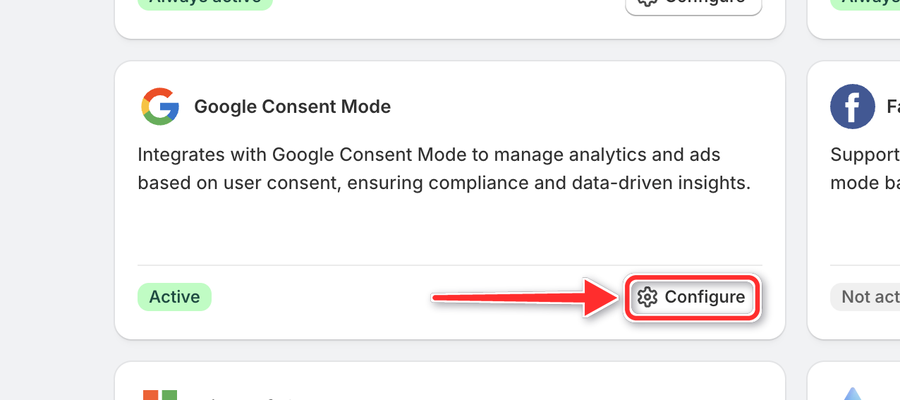
- In Shopify Admin, go to Apps > Pandectes GDPR > Integrations. On the Google Consent Mode card, click Configure.
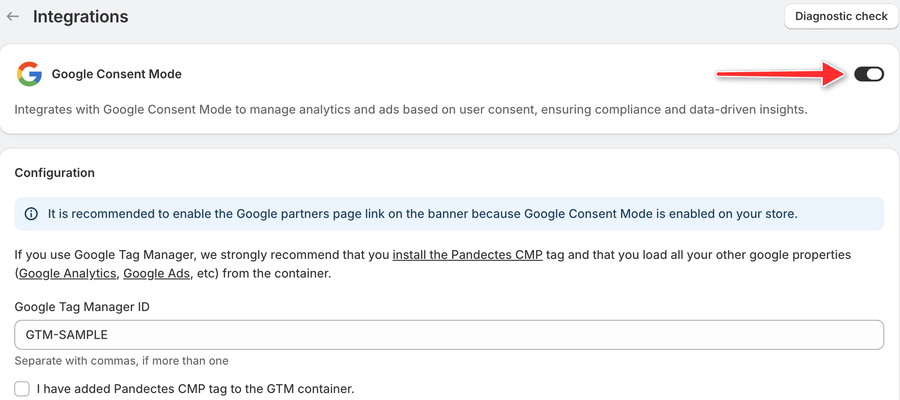
- Turn on the Google Consent Mode toggle and click Save.
Result
When a new visitor arrives, the GTM container starts with the right consent defaults. When the visitor uses the banner, the container is updated with the new permissions and your tags fire accordingly.
Updated on: 27/10/2026
Thank you!