
How to create a Customer Data Request page
This guide will walk you through creating a Customer Data Requests page in your Shopify store using the Pandectes GDPR Compliance app. Depending on your Shopify theme, you can follow one of the two methods outlined below.
You can also open the same steps inside the app: go to All settings > Customer data requests and click View instructions on the Customer data requests page - Activation instructions card.
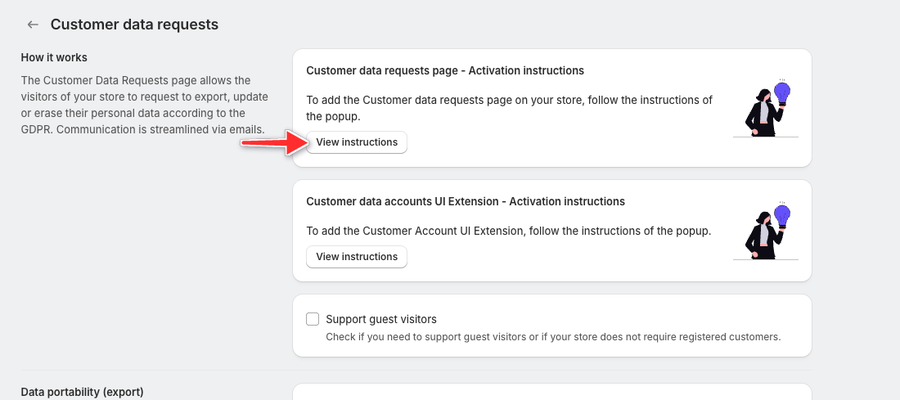
Create the Customer Data Requests Page
Online Store 2.0 Τhemes (Using Page Block)
- Navigate to Your Active Theme:
- Go to your Shopify admin panel.
- Navigate to Online Store > Themes.
- Find your active theme and click on Edit Theme.
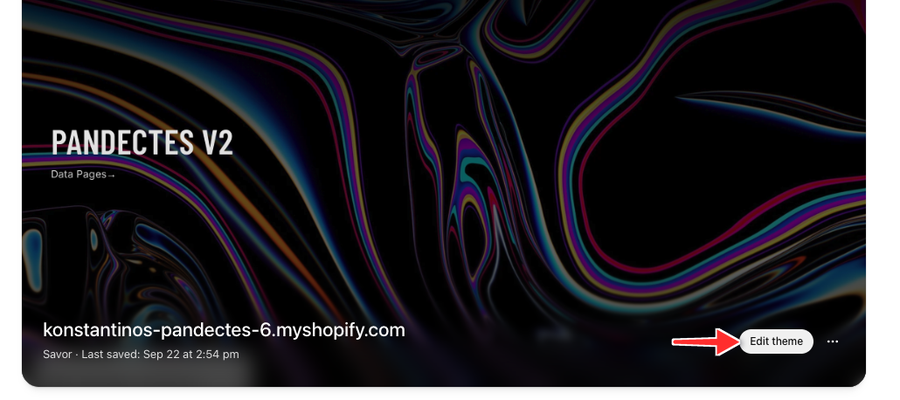
- Create a New Template:
- Use the menu at the top of the customization screen to select Pages.
- Click Create template and name it
datarequests.
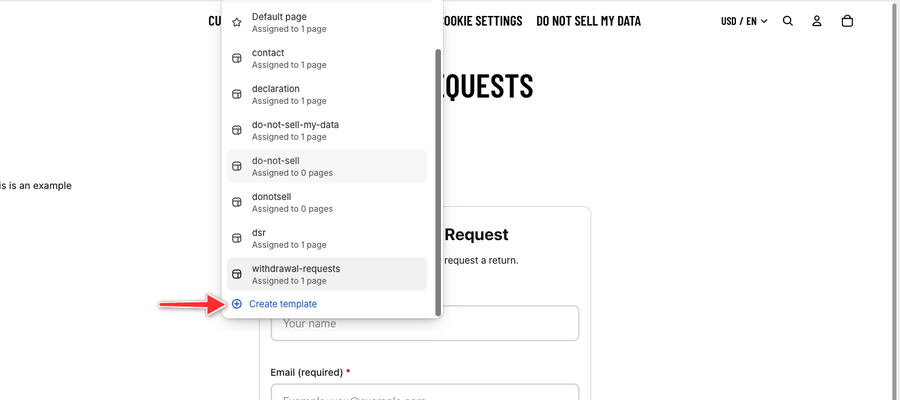
- Add the Pandectes Data Requests Section:
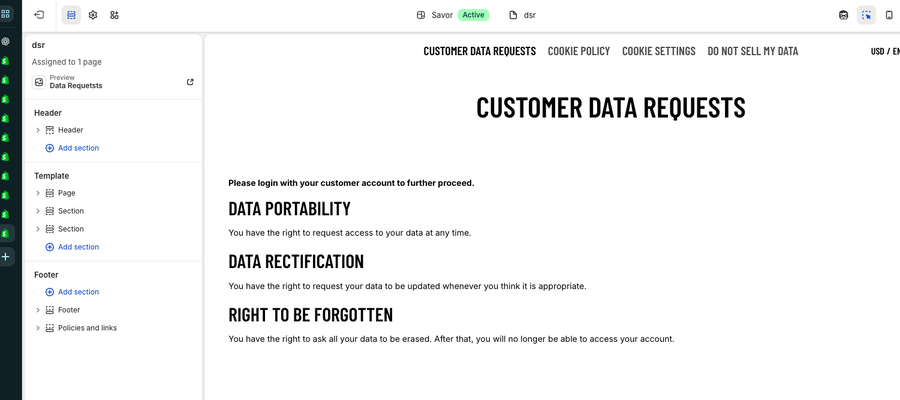
- With the new
datarequeststemplate selected, click Add section on the left panel. - Search for Pandectes Data Requests and add it to the template.
- Make sure the section is visible (check the eye icon).
- Click Save to update the theme.
- Assign the Template to a Page:
- Return to the Pages section in the Shopify admin.
- Select an existing page or create a new one titled "Data Requests."
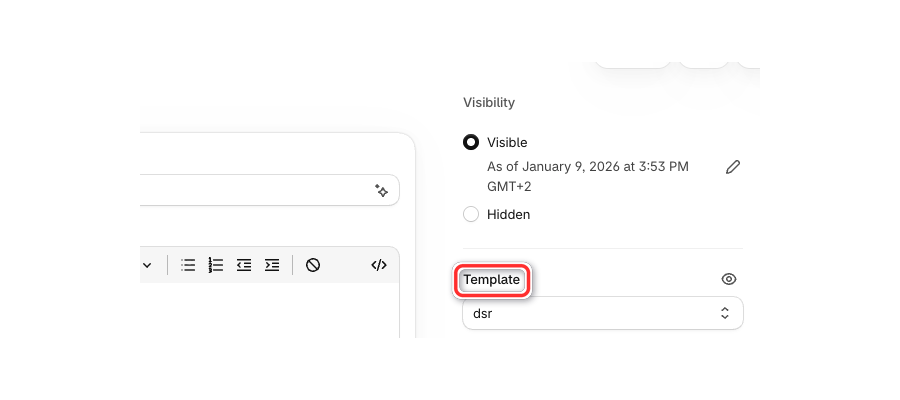
- On the right-hand side, set the theme template to
datarequests. - Click Save to update the page.
For Headless stores
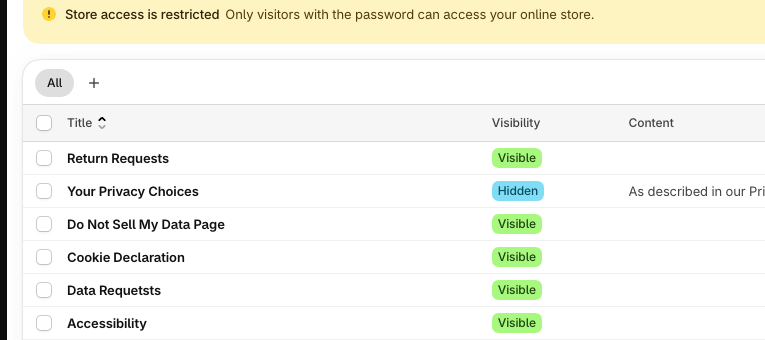
- Navigate to the Pages Section:
- In your Shopify admin, go to Online Store > Pages.
- Select an existing page or create a new one and give it a proper title.
- Save the Page:
- Click Save to update the page.
Create a Footer Menu Entry
- Go to Navigation Settings:
- In your Shopify admin, navigate to Content > Menus.
- Edit the Footer Menu:
- Click on the Footer option to open the footer menu settings.
- Add a New Menu Item:
- Click Add menu item to create a new link in the footer.
- Name the menu item "Data Requests."
- Set the link to point to the page you created in Step 1.
- Save the Menu:
- Click Save to finalize your changes.
By following these steps, you'll successfully create a Customer Data Requests page in your Shopify store using the Pandectes GDPR Compliance app. This page will allow your customers to easily submit data requests in compliance with GDPR regulations.
Updated on: 27/10/2026
Thank you!