
How to connect Judge.me to Pandectes for customer data requests
Overview
When a customer asks for a copy of their personal data, to be erased, or to correct their details, the data in your Shopify store is only part of the answer. If you use Judge.me for product reviews, Judge.me also holds data about that customer: the reviews they wrote, their name and email, and whether they accept marketing emails.
The Judge.me integration connects Pandectes GDPR Compliance to your Judge.me account. Once it is connected, the data requests you answer in Pandectes reach Judge.me too: what Judge.me holds about the customer is shared, corrected or erased with the rest, and many of these steps happen automatically.
This article explains how to connect Judge.me, which actions run on their own, and how to use it when you answer a data request.
Before you start
- Install the Judge.me Product Reviews app on your store. The integration works with both the Free and the Awesome plans of Judge.me.
- You need a Pandectes plan that includes customer data requests (Basic or higher).
- Your customers send their requests from your Customer Data Requests page. See How to create a customer data request page if you haven't set one up yet.
What the integration does
- Copy of the data (access and portability): get the customer's Judge.me reviews in the request and download them. Judge.me can also email you everything it holds about the customer, without a click.
- Erasure: unsubscribe the customer from Judge.me emails and, if you choose, archive their reviews.
- Correction (rectification): update the customer's name in Judge.me from the request.
- Log: every action is recorded on the request under Done in Judge.me, so you can show what was done and when.
- Customer download: when the customer downloads their data from the link in their request, the file includes their Judge.me reviews.
Pandectes talks to Judge.me in the background. Nothing changes on your storefront and your review widgets keep working as before.
How to connect Judge.me
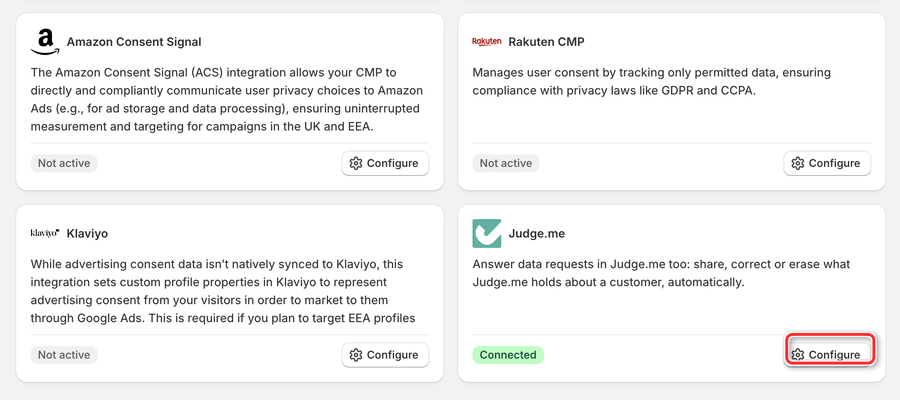
- In the Pandectes app, open Integrations. You find the Judge.me card under All integrations or Marketing & Ads. Click Configure.
- In a new browser tab, open your Shopify admin and go to Apps > Judge.me Reviews > Settings > Integrations. Click View API token and copy the Private API token.
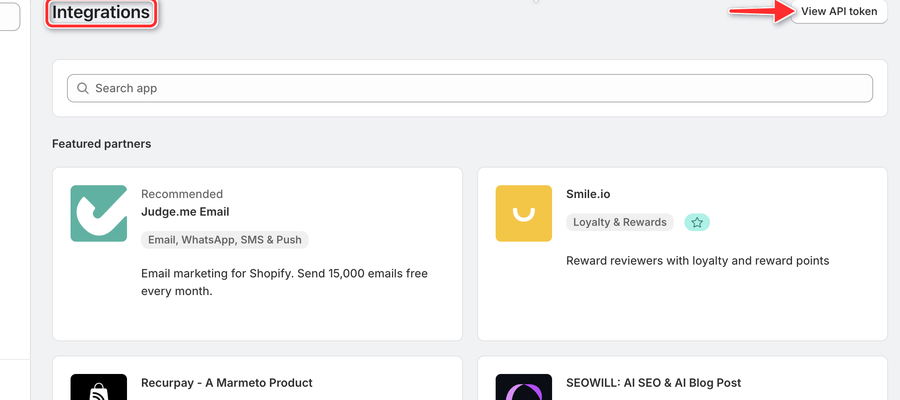
||| Copy the Private API token, not the public one. Keep it private: anyone who has it can read and manage your Judge.me reviews.
- Back in Pandectes, paste the token in Judge.me private API token and click Connect. Pandectes checks the token with Judge.me before it saves it.
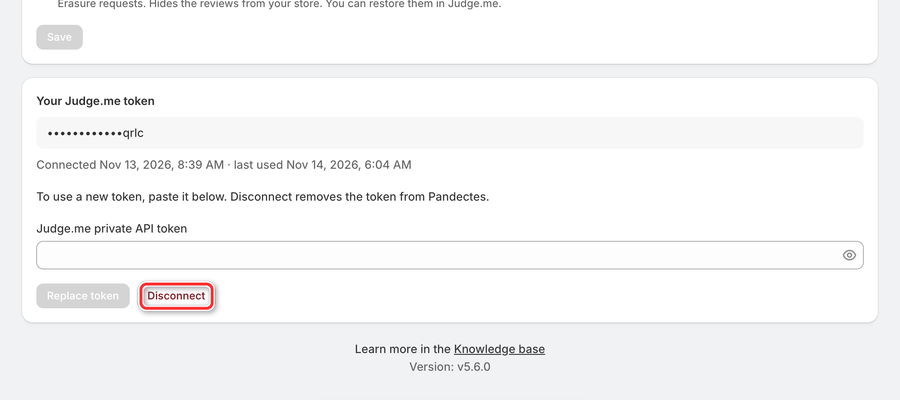
- When the token works, a Connected badge appears next to Judge.me at the top of the page, and the Your Judge.me token section shows the last four characters of your token and the date it was connected. Pandectes stores the token encrypted and never shows it again in full.
The Judge.me card on the Integrations page now shows Connected.
Choose the automatic actions
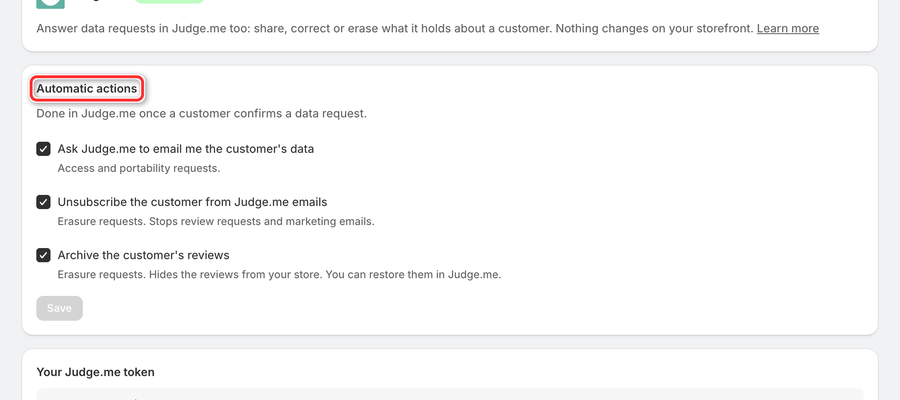
On the same Judge.me page, the Automatic actions section sets what is done in Judge.me once a customer confirms a data request. Pandectes runs these actions every few minutes, for requests confirmed after you connected Judge.me.
- Ask Judge.me to email me the customer's data: for access and portability requests. On by default.
- Unsubscribe the customer from Judge.me emails: for erasure requests. It stops review requests and marketing emails. On by default.
- Archive the customer's reviews: for erasure requests. It hides the reviews from your store, and you can restore them in Judge.me. Off by default.
Check the actions you want and click Save.
How to use it in a data request
- In the Pandectes app, click Reports & analytics, then click View report on the Customer data requests card.
- Open a request with the eye icon.
- In the Judge.me section of the request, you see the actions for that request type:
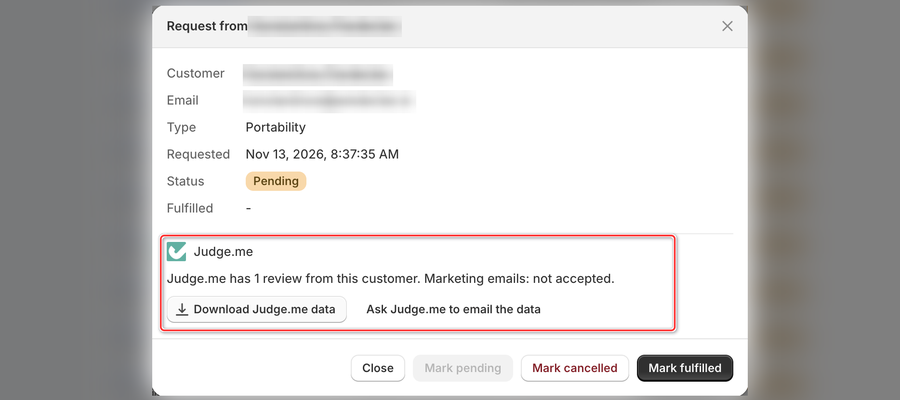
- Any request: Get Judge.me data shows how many reviews Judge.me holds for the customer's email, how many are published on your store, and whether they accept marketing emails. Then click Download Judge.me data to save it as a JSON file.
- Copy of the data: Ask Judge.me to email the data.
- Erasure: Unsubscribe from Judge.me emails and Archive Judge.me reviews.
- Correction: enter the name in Corrected name for Judge.me and click Update name in Judge.me. Published reviews keep the name they were posted with.
- Check Done in Judge.me for every action taken on the request, automatic or from the request, with its date and result. The log is also in the JSON download.
- Send the customer their answer, then click Mark fulfilled.
If Judge.me has no data for the customer's email, the section says so. Judge.me matches the customer by the email in the request.
Replace or remove the token
Open Integrations and click Configure on the Judge.me card.
- To use a new token, for example after you generate a new one in Judge.me, paste it in Judge.me private API token and click Replace token. Your automatic actions and the connection date stay the same.
- To remove the connection, click Disconnect. Pandectes deletes the token, and the Judge.me section no longer appears in your data requests.
Troubleshooting
Judge.me refused the token
Copy the Private API token again from Judge.me Reviews > Settings > Integrations > View API token. Make sure you copy the token of the same store where Pandectes is installed: a token from another store doesn't work.
Judge.me returned an error
Judge.me may be briefly unavailable, or it refused the action. The log under Done in Judge.me shows Judge.me's reason. Wait a moment and try again. Automatic actions retry a failed step up to 3 times, then record the failure under Done in Judge.me.
An automatic action didn't run
Automatic actions only run for requests the customer confirmed after you connected Judge.me, and they run every few minutes. Check Automatic actions on the Judge.me page and look at Done in Judge.me in the request.
The Judge.me section doesn't appear in a request
Check that the Judge.me card on the Integrations page shows Connected, and that your plan includes customer data requests.
Updated on: 14/11/2026
Thank you!