
How to reload the page or redirect visitors after they decline (New Version)
Overview
Follow-up actions are on Cookie banner > Advanced.
After a visitor accepts or declines, you can:
- Reload the page so tags and theme scripts start from a clean load
- Redirect visitors who decline all cookies to another URL (consent is not stored in that case)
- Synchronize consent in other open tabs so a choice in one tab applies to other open tabs
Use reload only when a script does not pick up consent until the next page load. A full reload can feel slow on mobile.
Before you start
- Decide the redirect URL (for example a privacy policy or a simple landing page). Use a full URL or a path that exists on the store.
- If you use Google Consent Mode, test both with and without reload. Many GCM setups update without a refresh.
Open follow-up actions
- Open Shopify Admin > Apps > Pandectes GDPR Compliance.
- Go to Cookie banner > Advanced.
- Find Follow-up actions.
- Enable Reload page on consent, Redirect if user denies all, or Synchronize consent in other open tabs.
- If you use the redirect, enter the URL in the field that appears. It must start with http or https.
- Save.
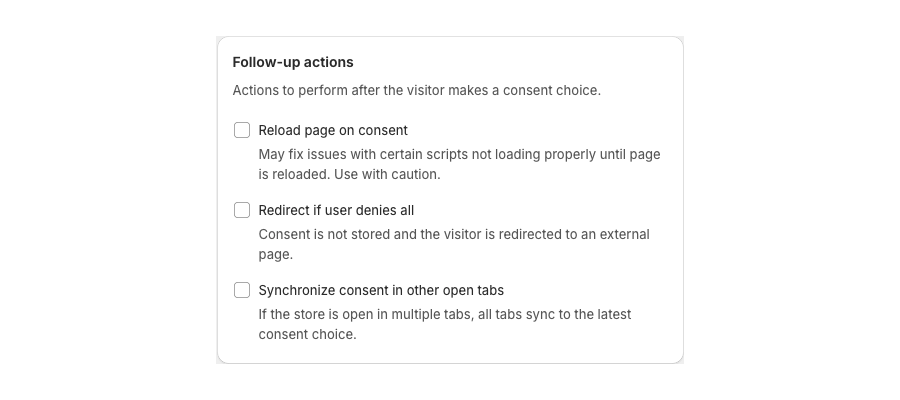
Reload page on consent
When enabled, the storefront reloads after the visitor accepts or declines.
Use this when:
- A theme app or pixel only reads consent on first load
- You still see blocked tags after Accept until refresh
Do not combine this with a long banner delay if it creates a loop of reload plus banner. Test in a private window.
Redirect if user denies all
When enabled, declining all cookies sends the visitor to the URL you enter (it must start with http or https).
- Consent is not stored for that dismiss-and-leave flow.
- The visitor leaves the page they were on.
This is similar in spirit to a Leave site action. Prefer a page you control (policy or homepage), not an external ads domain. The app describes this as an external page.
Synchronize consent in other open tabs
When enabled, a consent choice in one tab updates the other open tabs of the store. Useful for shoppers who open several product tabs.
Verify
- Select Enable for admins at the top of Cookie banner while you test. See How to enable, disable, or test the banner in admin-only mode (New Version).
- Accept all, then confirm whether the page reloads and tracking starts.
- Decline all, then confirm the redirect URL and that you land on the intended page.
- If tab sync is on, accept in one tab and confirm a second tab updates.
Related articles
Updated on: 27/10/2026
Thank you!