
How to show the banner only in selected regions (New Version)
Overview
Region visibility is no longer on Legacy Geolocation. Use All settings > Consent model & regions.
You choose whether the banner is visible:
- Worldwide: every visitor can see the banner (subject to Advanced path rules and bots)
- Selected regions: only visitors detected in the countries/regions you enable
Consent policy (opt-in vs opt-out) is a separate choice on the same page. See How to set Auto Pilot or a custom consent model per region (New Version).
Shopify Customer Privacy also influences sale-of-data and some tracking. Keep Shopify regions aligned with Pandectes.
Before you start
- Confirm the store is on the New Banner.
- Do not use All settings > Geolocation for New Banner stores.
For Legacy stores, see Geolocation and Select regions for our cookie banner (Legacy).
Set worldwide or selected regions
- Open Shopify Admin > Apps > Pandectes GDPR Compliance.
- Go to All settings > Consent model & regions.
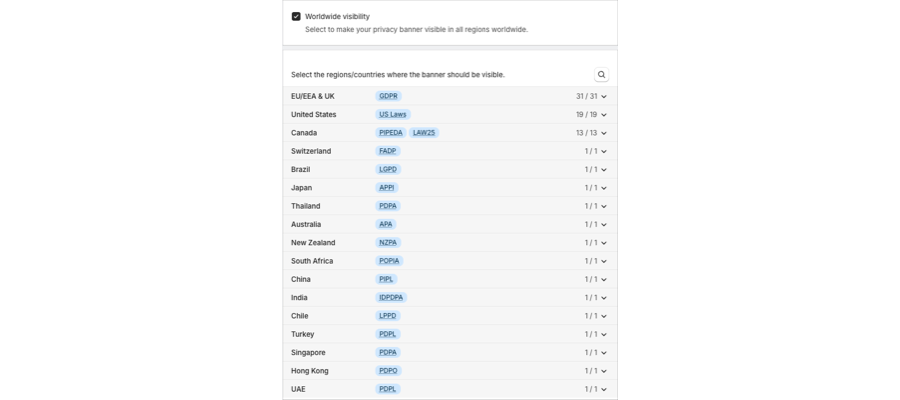
- Scroll to Regions visibility.
- For all visitors, keep Worldwide visibility selected. To limit the banner, clear it.
- Select countries/regions on Recommended and Rest of the world as needed.
- Save.
The Banner status bar may show a summary of the consent model and its scope, for example Strict opt-in - Worldwide.
What is not controlled here
- Hiding the banner on
/policies/privacy-policy: Cookie banner > Advanced > Start hidden for the following paths. See How to show the banner on specific pages (New Version). - Admin-only testing: How to enable, disable, or test the banner in admin-only mode (New Version).
Verify
- Open the storefront in a private window.
- Compare an EU location (VPN or market) with a region you did not select.
- Confirm the banner appears only where you enabled visibility.
Related articles
Updated on: 27/10/2026
Thank you!