
How to set Auto Pilot or a custom consent model per region (New Version)
Overview
Consent logic lives on All settings > Consent model & regions. Banner look lives on Cookie banner (Layout, Content, Style).
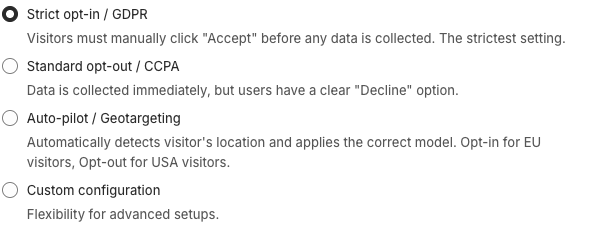
Pick one consent model:
Model | Merchant label | Typical use |
|---|---|---|
| Strict opt-in / GDPR | Visitor must Accept before non-essential collection (GDPR-style). |
| Standard opt-out / CCPA | Collection can start; visitor can Decline. |
| Auto-pilot / Geotargeting | Opt-in in the EU (and similar), opt-out elsewhere by location. |
| Custom configuration | You mark which regions are strict opt-in. |
This replaced Legacy Geolocation plus Banner Policy Mode. Conceptual background: Consent Model & Regions (New Version).
Banner UI (notice vs preferences) is independent. Google still needs preferences access for many ads setups. See How to create a banner that meets Google’s banner requirements (New Version).
Before you start
- Use the New Banner. Legacy stores still use Geolocation / Behavior policy mode.
- For most worldwide stores, start with Auto Pilot, then use Custom configuration only if you must override specific countries.
Open Consent model & regions
- Open Shopify Admin > Apps > Pandectes GDPR Compliance.
- Go to All settings > Consent model & regions.
- Under Consent model, choose the model.
- Under Regions visibility, set Worldwide visibility or a region list. See How to show the banner only in selected regions (New Version).
- If you chose Custom configuration, open the region lists (Recommended / Rest of the world) and enable strict opt-in for each region that needs it (all EU/EEA + UK if you sell to Europe).
- Save.
Custom configuration may require a Premium or Enterprise plan. If the option is locked, open Plans & subscription (top bar).
Align Shopify Customer Privacy
Pandectes Privacy works with Shopify’s Customer Privacy API. After you save, confirm Shopify Settings > Customer privacy regions still match how you sell (especially US sale-of-data). For the in-banner DNS toggle, see How to show Do not sell or share my data on the banner (New Version).
Verify
- Check the Banner status summary (for example Strict opt-in - Worldwide, or a region count).
- Test an EU IP or market: non-essential tags should wait for Accept when the model is opt-in.
- Test a US IP or market: opt-out or Auto Pilot should match what you configured.
- On Custom configuration, confirm every EU/EEA + UK region you serve is opt-in.
Related articles
Updated on: 27/10/2026
Thank you!