
Integration with Google Tag Manager (GTM) - Official Pandectes Template
Overview
The Pandectes GDPR compliance app offers an official template in Google Tag Manager (GTM) to integrate the cookie consent banner with it. This allows you to handle Google Consent Mode V2 inside the Google Tag Manager and manage your tags to run according to user consent.
Video Guide
Prerequisites
- The cookie banner is active.
- You are on the Plus plan or higher. On the Basic plan the template does not receive consent updates.
- Your GTM container loads in one of these two ways:
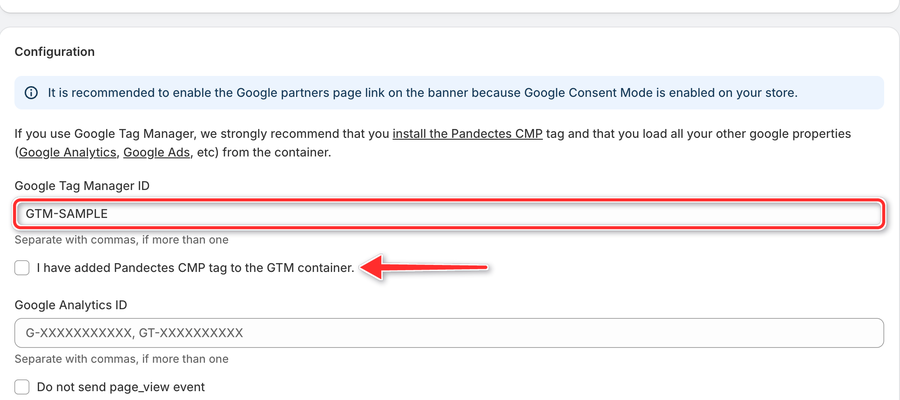
- From Pandectes (recommended): the Google Consent Mode integration is on, your container ID is in Google Tag Manager ID, and I have added Pandectes CMP tag to the GTM container. is selected. See Step 4 below.
- From your theme: the GTM snippet is in
theme.liquidand the Google Consent Mode integration in Pandectes is turned off.
Not sure which one fits your store? See How to set up Google Tag Manager with Pandectes.
Step 1: Adding template from gallery
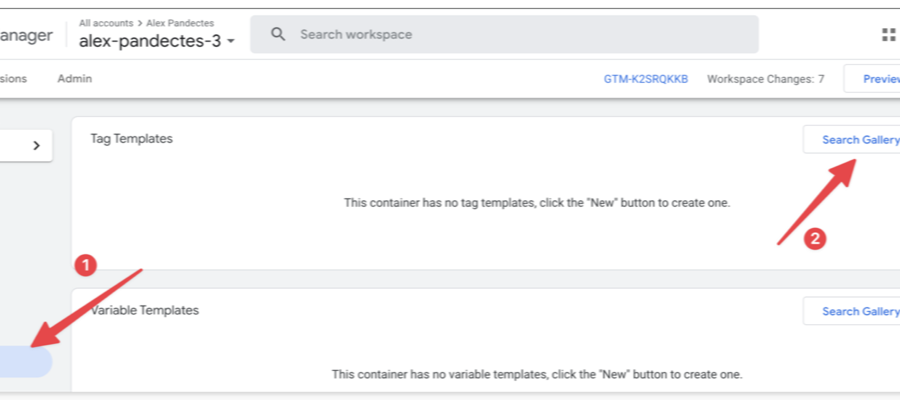
Go to GTM's templates, then click on Search Gallery.
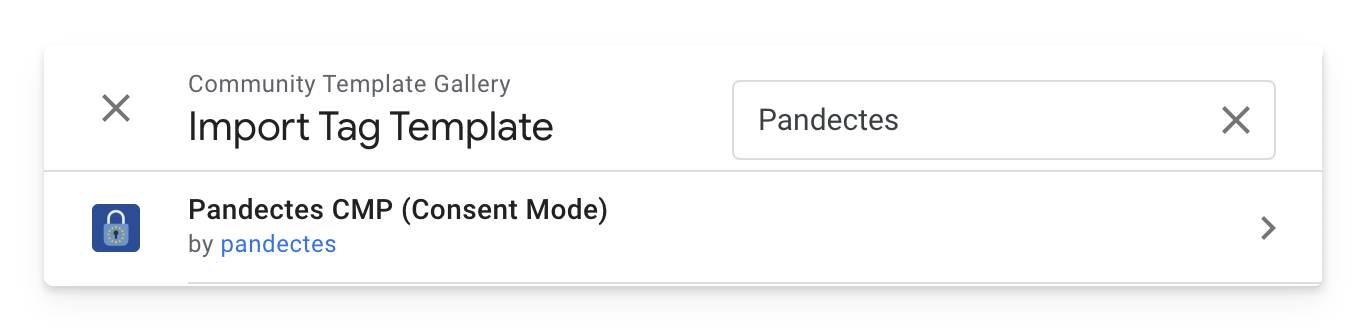
Search for Pandectes, and select the Pandectes CMP (Consent Mode).
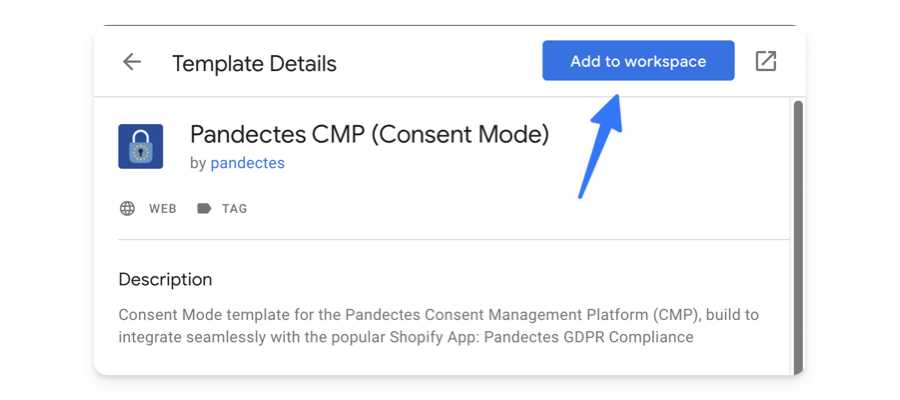
Then click on Add to Workspace.
Then confirm, by clicking Add.
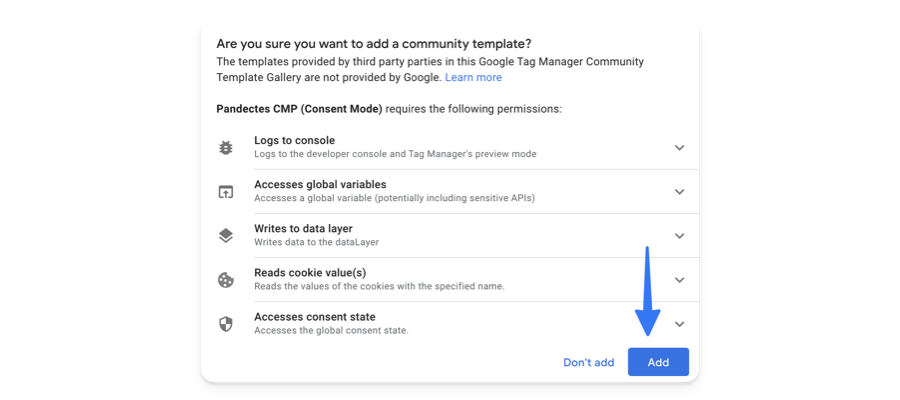
You have now successfully added the template!
Step 2: Creating tag from template
Go to the Tags, and create a new tag.
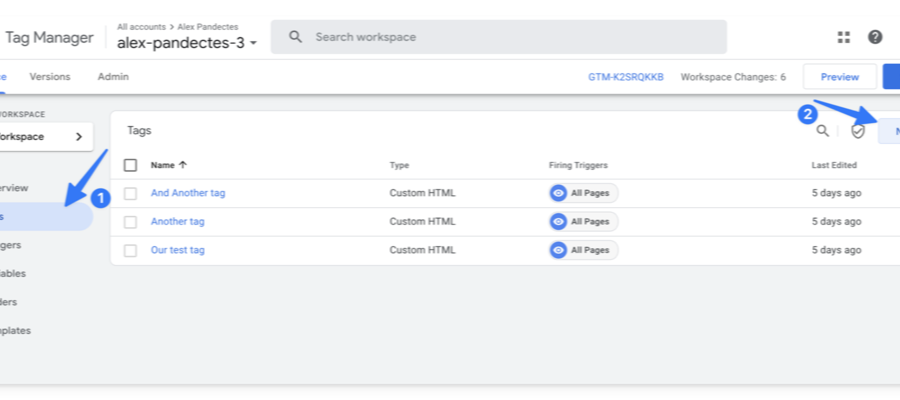
Name it Pandectes Consent. Click on Tag Configuration and select the Pandectes CMP (Consent Mode).
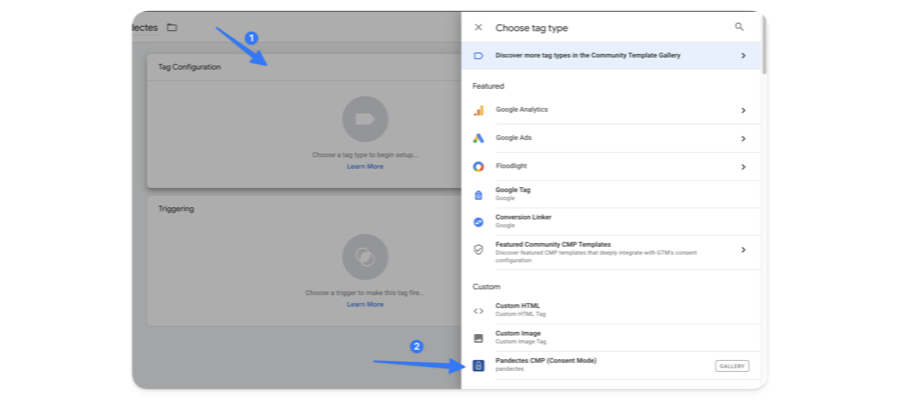
Leave all the options as-is - Then click on Triggering.
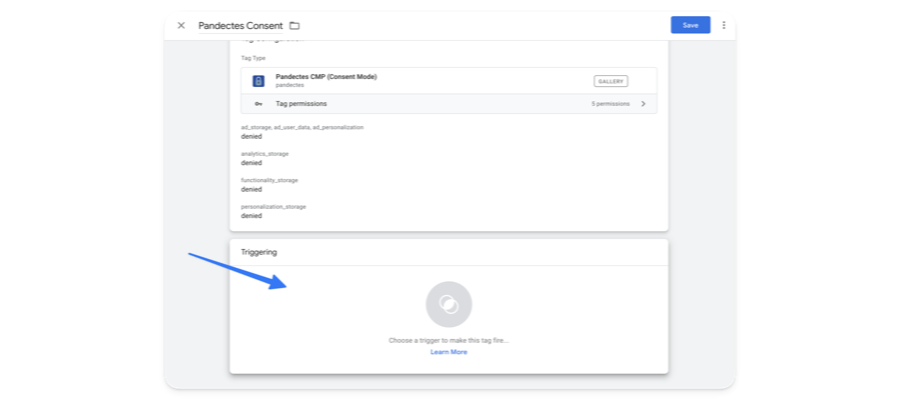
On the trigger, select Consent Initialization - All pages.
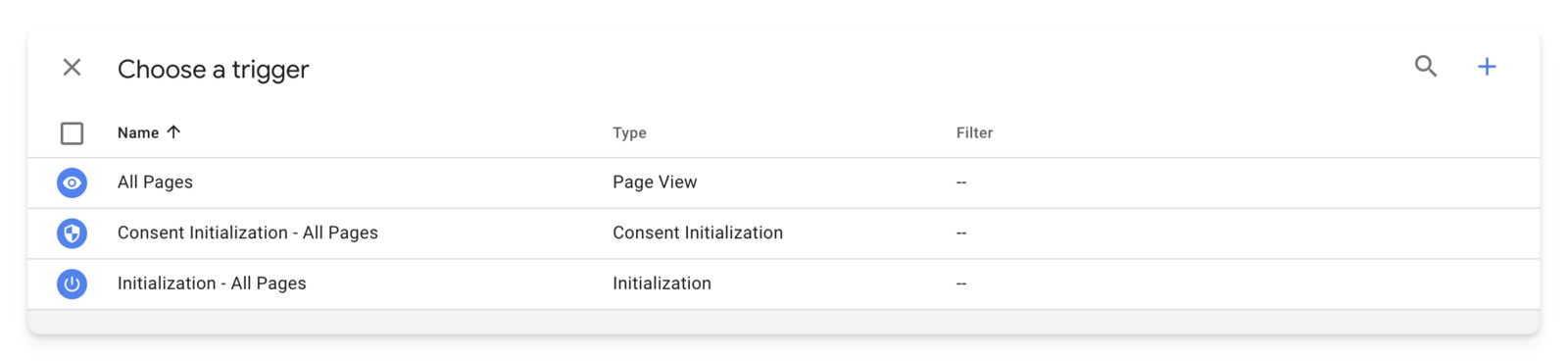
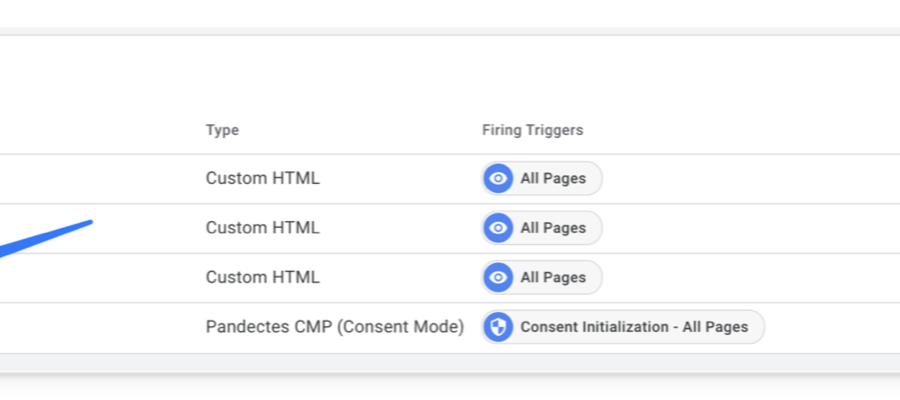
Then the tag is ready! Now, we can assign consent categories to our other tags.
Step 3: Assign consent categories to your tags
Open the tag that you would like to assign consent to.
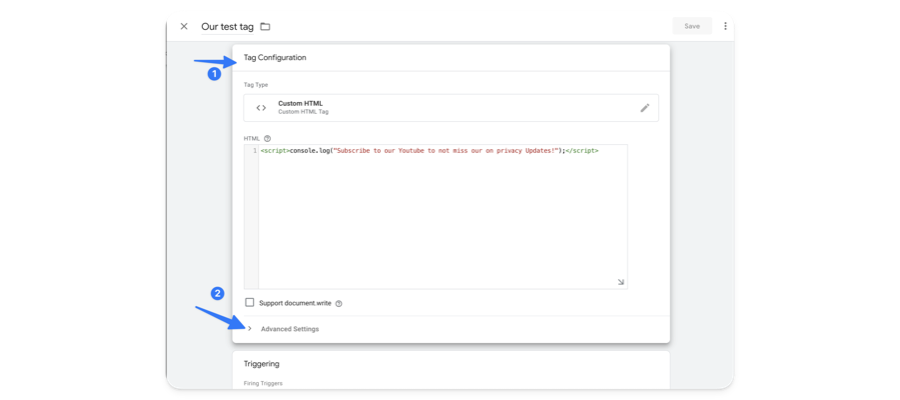
Click on Tag Configuration then Advanced Settings.
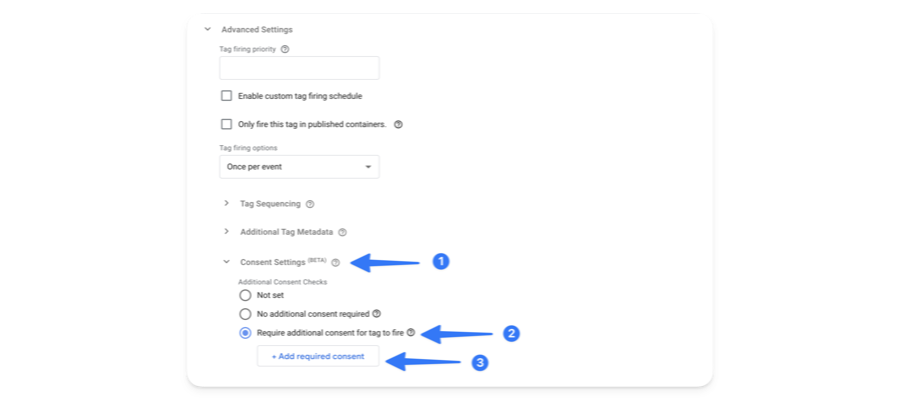
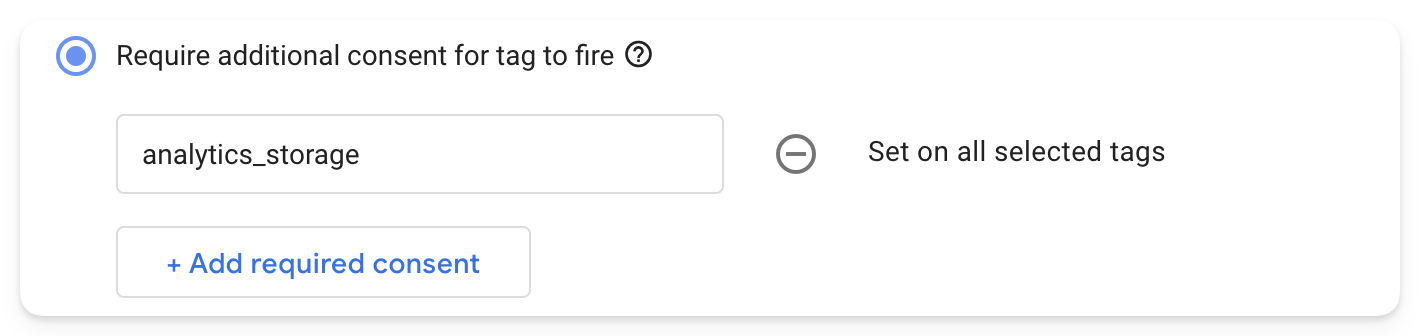
Select Consent Settings (BETA) and Choose the Require additional consent for tag to fire. Then, click on Add required consent.
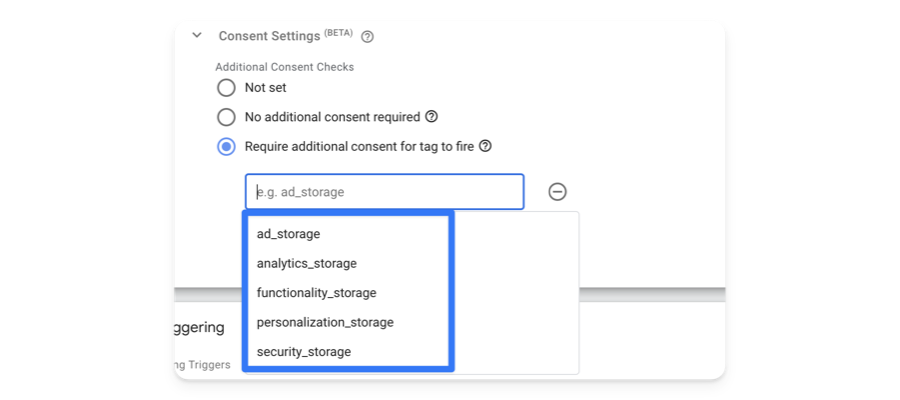
From the dropdown, select the consent mode category that you want to assign to the tag, so that it fires when that category is accepted.
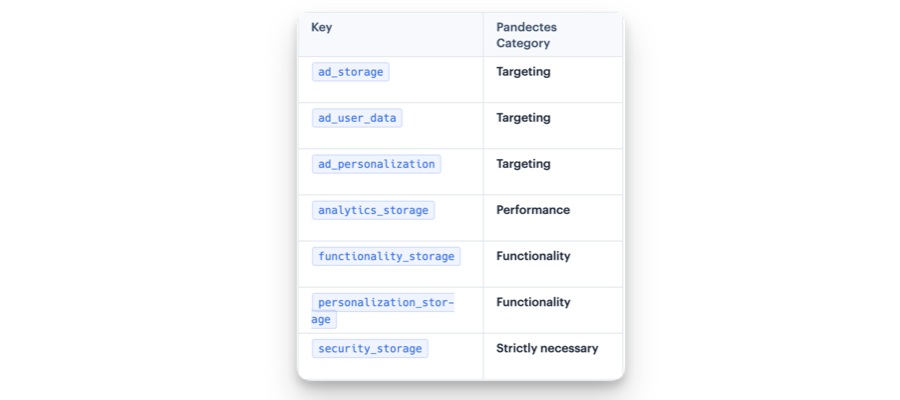
For your convenience, here is a table with the google consent mode Categories, corresponding to the Cookie banner Categories.
For example, if we want the tag to fire when the Performance cookies are allowed, we would choose analytics_storage:
Save the new tag settings, and that's all! The tag will only fire whenever consent is given to it.
Step 4: Finish the setup in Pandectes
Skip this step if your GTM container loads from theme.liquid.
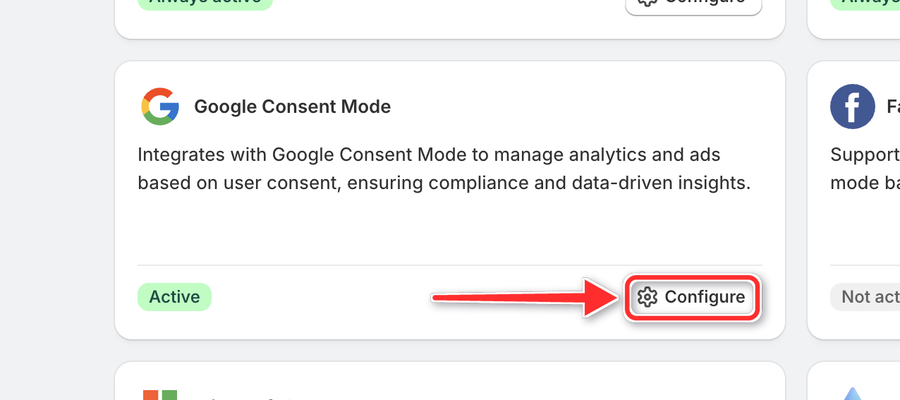
- In Shopify Admin, go to Apps > Pandectes GDPR > Integrations. On the Google Consent Mode card, click Configure.
- Turn on the Google Consent Mode toggle.
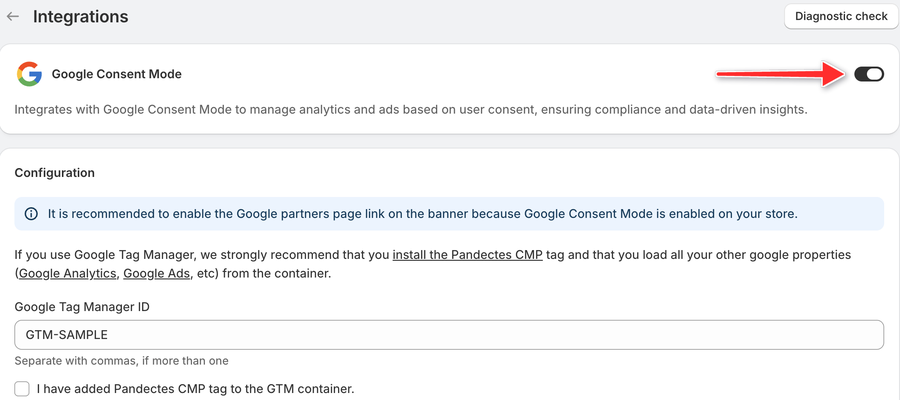
- Enter your container ID in Google Tag Manager ID, select I have added Pandectes CMP tag to the GTM container., and click Save. Pandectes then loads your container and the Pandectes CMP tag handles consent for every tag in it. Remove the GTM snippet from
theme.liquidso the container does not load twice.
OPTIONAL Pro tip - if you have many tags
This is a method to add a consent category to multiple tags - to save time.
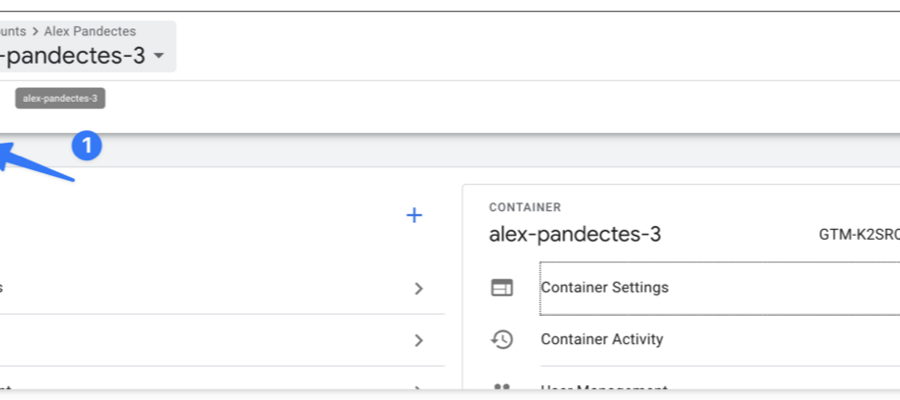
Go to the Admin panel, and choose Container Settings
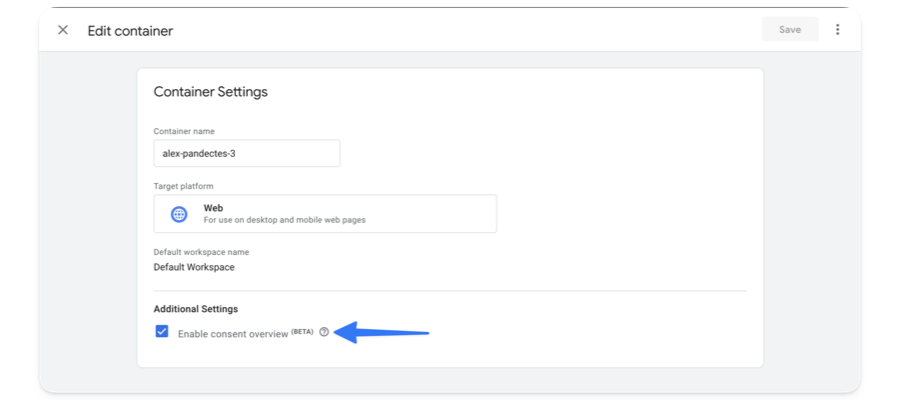
Make sure the Enable consent overview is selected:
Then, in your Tags, select the Shield Icon:
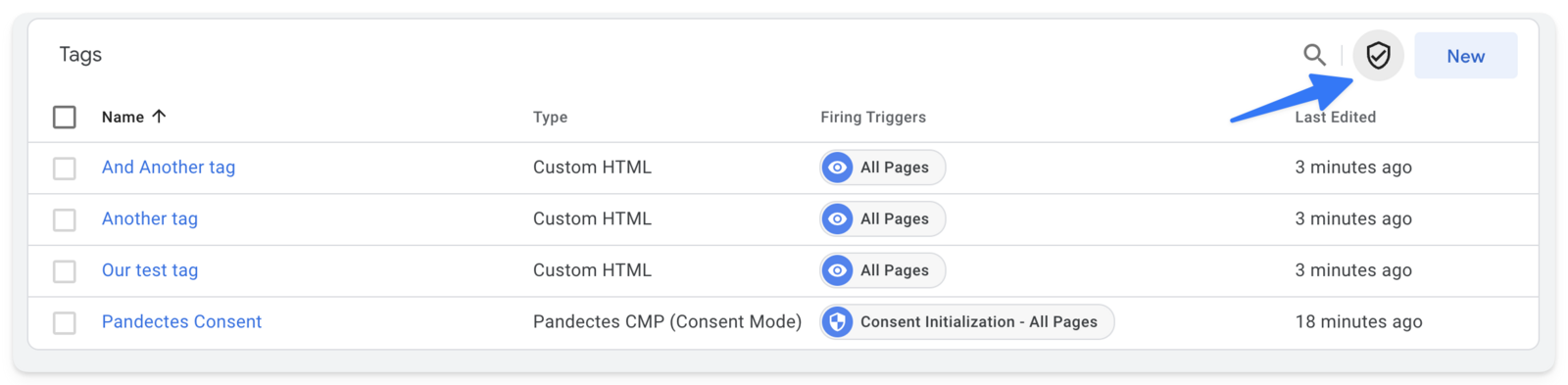
This will open the Consent Overview Panel. Choose the tags that you want to assign a consent category to, and click on the Shield Icon.
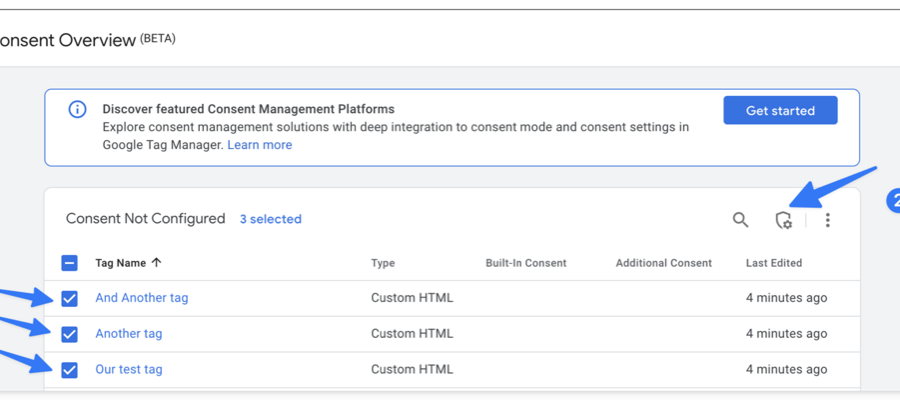
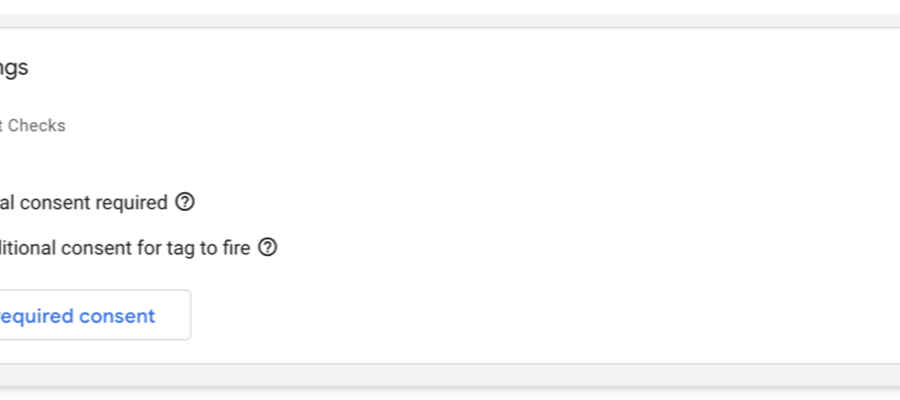
Assign consent just like we did before.
Updated on: 27/10/2026
Thank you!