
How to set up Google Tag Manager with Pandectes
Overview
If your store uses Google Tag Manager (GTM), your Google tags should only fire with the consent your visitors give on the Pandectes banner. This article covers the Pandectes side of that setup: where your GTM container should load, which fields to fill in the app, and which box to tick.
The work inside Google Tag Manager itself (adding the Pandectes CMP tag and assigning consent to your tags) is explained in Integration with Google Tag Manager (GTM) - Official Pandectes Template. Keep both articles open while you set things up.
Before you start
- Your banner must be active. The Pandectes CMP tag waits for the banner's consent signals. If the banner is off, your tags stay blocked.
- Check your plan. Google Consent Mode and the Pandectes CMP tag work on the Plus plan and above. You can see your plan under Plans & subscription in the app.
- Find out where GTM loads today. Open Online Store > Themes > Edit code > theme.liquid and search for
GTM-. If you find a Google Tag Manager snippet there, your container loads from the theme.
Which setup do I need?
Where your GTM container loads | Setup |
|---|---|
Nowhere yet, or you can remove it from | Setup 1: let Pandectes load your container (recommended) |
From | Setup 2: keep GTM in your theme |
Use only one of the two. Loading the same container from the theme and from Pandectes fires your tags twice.
Setup 1: Let Pandectes load your GTM container
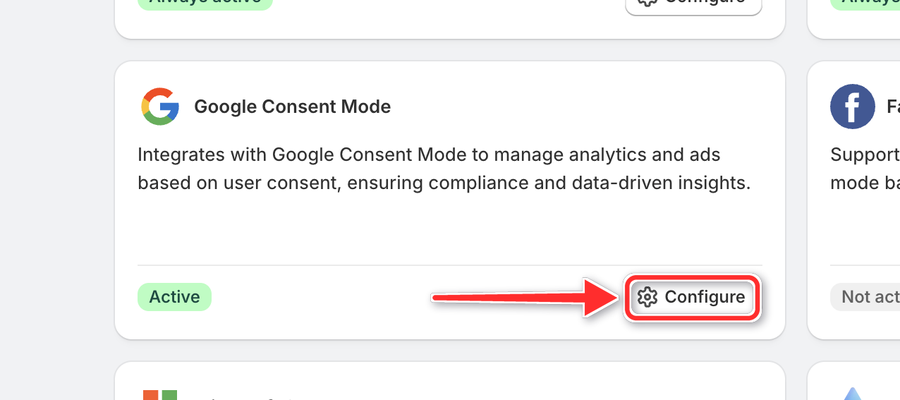
- In Shopify Admin, go to Apps > Pandectes GDPR > Integrations. On the Google Consent Mode card, click Configure.
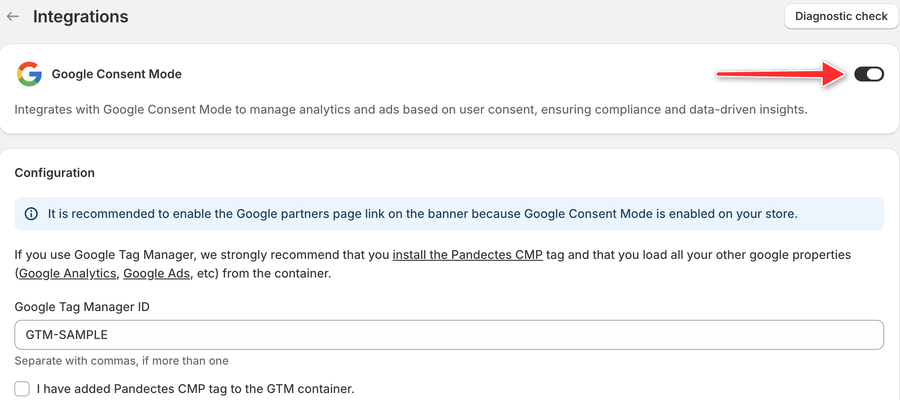
- Turn on the Google Consent Mode toggle at the top of the page.
- Under Configuration, enter your container ID in Google Tag Manager ID (for example
GTM-AB12CD3). If you use more than one container, separate the IDs with commas. - In Google Tag Manager, add the Pandectes CMP tag from the Template Gallery, set it to fire on Consent Initialization - All Pages, and publish your container. The full steps are in the template article.
- Back in Pandectes, select I have added Pandectes CMP tag to the GTM container.
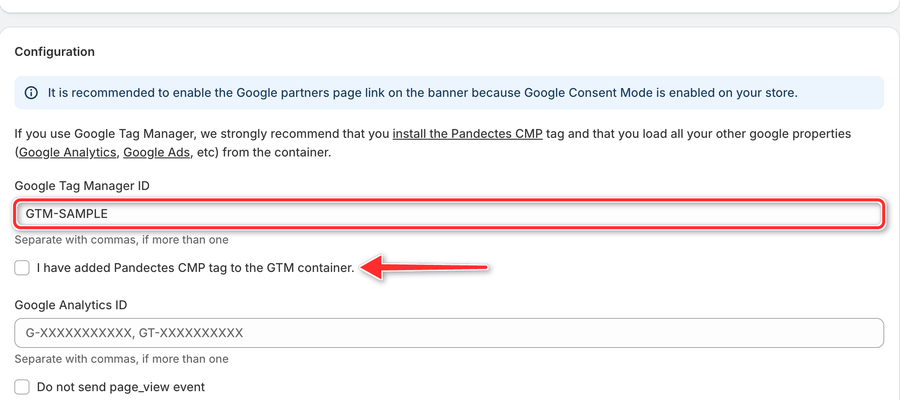
- Click Save.
- If
theme.liquidstill contains the GTM snippet, remove it. See Removing Google Properties from your Shopify theme.
Once the box is ticked, the Google Analytics ID, Google Ads ID, and Advanced settings fields disappear. That is expected: Pandectes now loads your container, and the Pandectes CMP tag inside GTM handles consent for every tag in it. Load Google Analytics and Google Ads from the container too:
Setup 2: Keep GTM in your theme
Use this when the GTM snippet has to stay in theme.liquid.
- In Shopify Admin, go to Apps > Pandectes GDPR > Integrations and open the Google Consent Mode card with Configure.
- Turn the Google Consent Mode toggle off, and leave Google Tag Manager ID empty. A container that already loads from
theme.liquidmust not be added in the app as well. - In Google Tag Manager, add the Pandectes CMP tag and assign consent to your tags, as described in Integration with Google Tag Manager (GTM) - Official Pandectes Template.
- Publish your container.
For services you load from GTM or from your theme, the Need help? box at the top of the Integrations page also has a Manual setup button with more guidance.
Using dataLayer events instead of the template
Some stores control their tags with custom triggers instead of the Pandectes CMP tag. In that case, turn on the Pandectes events integration on the Integrations page. It pushes the visitor's consent into the dataLayer on every page load and on every banner interaction. Build your variables and triggers as described in Integration with Google Tag Manager and Pandectes custom event.
For most stores, the Pandectes CMP tag is simpler and is the recommended option.
Check that it works
- Open your store in a private window from a region where your banner asks for consent.
- Before you click anything, open GTM Preview mode. Your consent-based tags should show as not fired.
- Accept the cookies on the banner. The tags for the accepted categories should now fire.
For a deeper check, see Checking if Google Consent Mode is properly implemented and Google Consent Mode debug console.
Updated on: 27/10/2026
Thank you!