
Skroutz Order Integration: A Complete Setup Guide
Overview
Connect Skroutz Smart Cart orders to your Shopify admin so you can view order details and manage the Skroutz order status from one place.
This guide covers the prerequisites, Orders module setup, webhook configuration, and Shopify order block. It also explains the information shown for each Skroutz order.
Before you start
- The Skroutz Connect app is installed and connected to your Shopify store.
- Your store is on a paid app plan. The free Basic plan does not include order synchronization.
- You have the Skroutz API token from the merchant's Smart Cart settings.
- Your Shopify store has at least one order.
Step 1: Enable the Orders module
- Open the Skroutz Connect app from Shopify Admin > Apps.
- Go to Settings > Orders.
- Turn on Enable Smart Cart Orders synchronization.
- Paste the API token from the Skroutz Marketplace Smart Cart settings.
- Select Save.
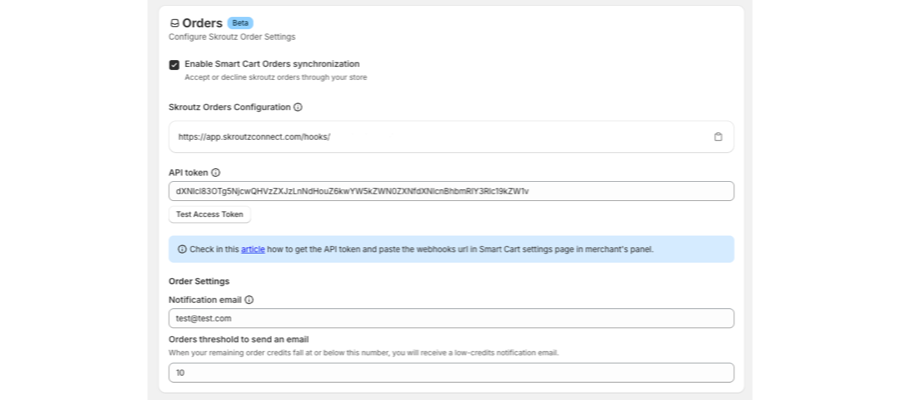
If the token is valid, a confirmation appears next to the token field. If it is invalid, the app displays an error and you cannot manage Skroutz orders from Shopify until you add a valid token.
You can select Test Access Token at any time to verify the token saved in the app.

Step 2: Add the webhook URL
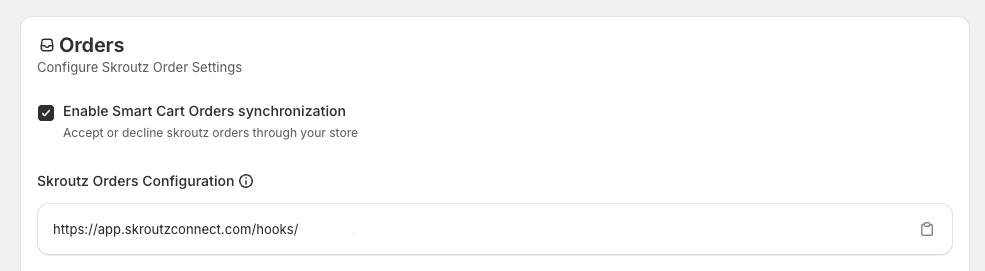
After enabling order synchronization, copy the webhook URL from the Orders settings.
- Open the Skroutz Marketplace Smart Cart settings.
- Open the webhook settings under Merchants > Services.
- Paste the webhook URL from Skroutz Connect into the webhook field.
- Save the Smart Cart settings.
The webhook URL includes a unique name for your shop after /hooks. Use the copy icon next to the URL to copy the complete value.

For more information about where to add the URL, see Skroutz's guide to connecting an e-shop with the API and webhook.
Step 3: Add the Skroutz Connect order block
Add the block to an existing Shopify order, then pin it so it appears automatically on new and past orders.
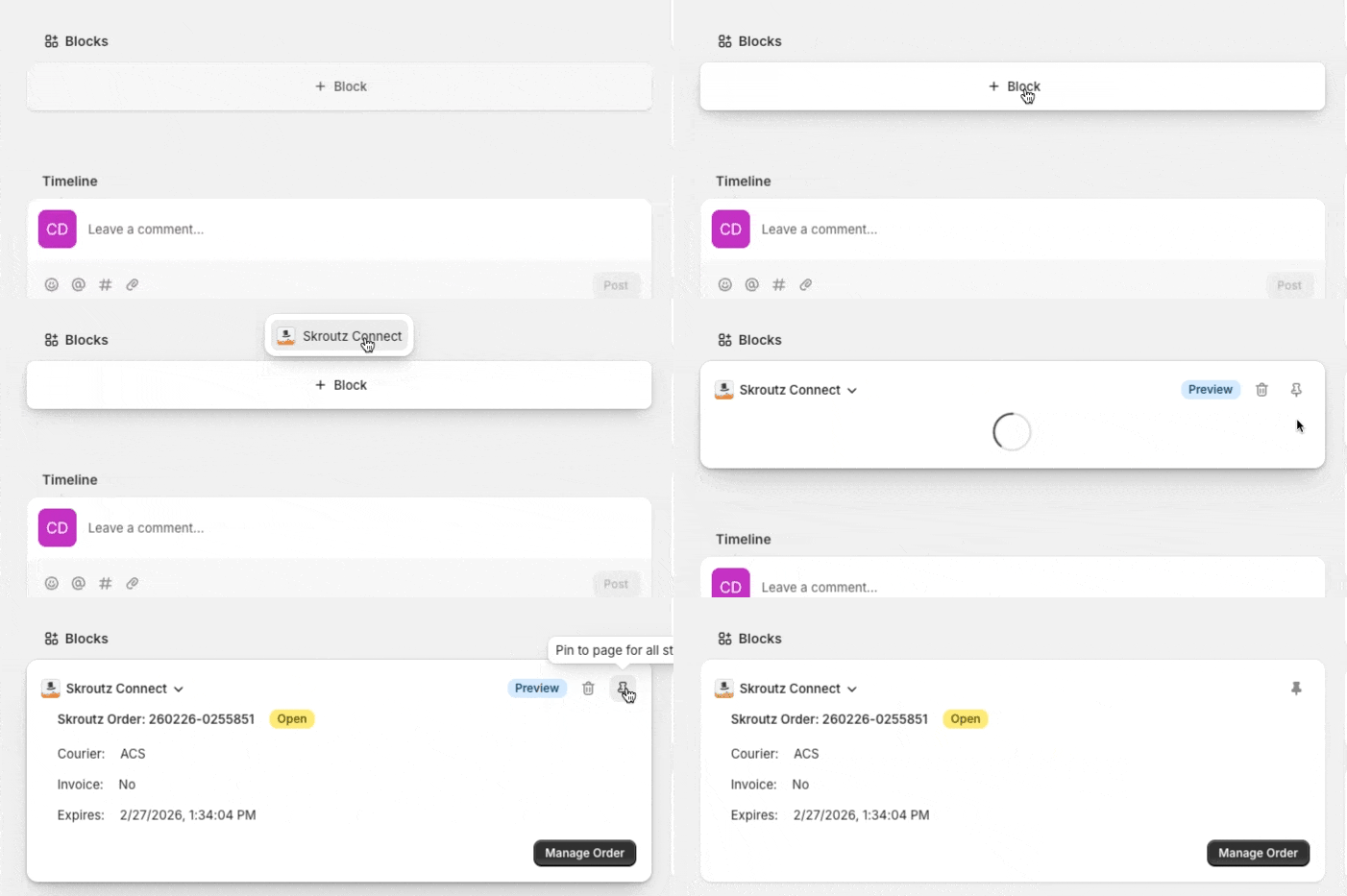
- Open an existing order in Shopify Admin.
- In the order blocks area, select the + icon.
- Add the Skroutz Connect block.
- Select the pin icon to keep the block visible.
The block can show the following Skroutz order information:
- Order code
- Skroutz order state, such as Open, Accepted, Dispatched, or Rejected
- Courier
- Invoice, where Yes means invoice and No means receipt
- Order comments
Manage a Skroutz order
Select Manage order at the bottom of the Skroutz Connect block to open the order management page.
From there, you can review the order details and manage the Skroutz order according to its current state.
Troubleshooting
If orders do not appear in Shopify, confirm that:
- The app has a valid Skroutz API token.
- Smart Cart order synchronization is enabled.
- The webhook URL was copied completely and added to the correct Smart Cart settings page.
- The Skroutz Connect block is pinned in the Shopify order view.
Updated on: 23/09/2026
Thank you!