
Proof of consent: download a PDF that proves a visitor's cookie choice
Overview
If a customer, a partner or a data protection authority asks you to show that a visitor agreed to cookies, you need more than a line in a log. Proof of consent turns any consent in your Consents list into a page you can review and a PDF you can share.
The PDF shows the visitor's choice and when it was made, the visit it came from, and, for consents given with recorded banner settings, the banner the visitor saw and its settings at the time. Every PDF carries a QR code that opens a public verification page, so whoever receives it can check it against the record Pandectes holds.
Before you start
- Your store is on the Enterprise plan.
- Your store uses the New Banner. Banner settings versions are only kept for the New Banner.
- A full proof (with the banner) needs a consent given after your banner settings were kept. Pandectes keeps a version of your banner settings each time you publish a change on Enterprise. Consents given before that get a consent record: the visitor's choice, without the banner. See Proof of consent or consent record.
Open a consent
- Go to
Shopify Admin > Apps > Pandectes GDPR Compliance > Reports & analytics. - Open Consents list.
- Find the consent. You can filter by date (Today, Last week, Last month and so on), by Type, or paste its 24-character ID into Search by ID.
- Click the consent's ID.
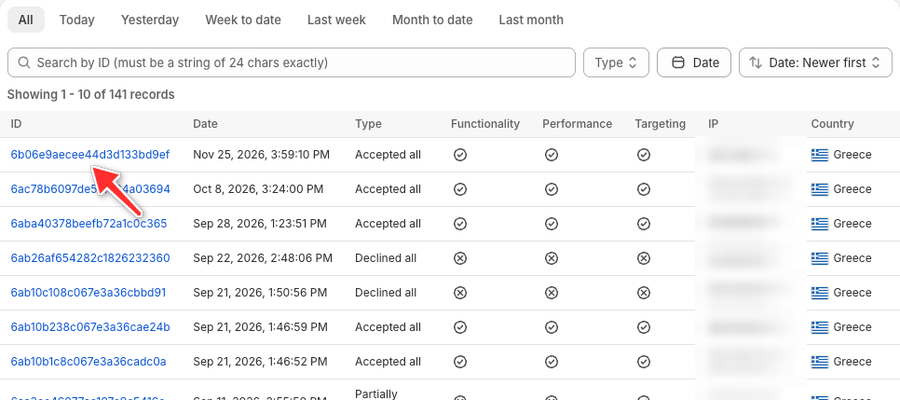
The page opens at the top with the decision (Accepted all, Rejected all or Partially accepted) and the time it was given, in your store's time zone.
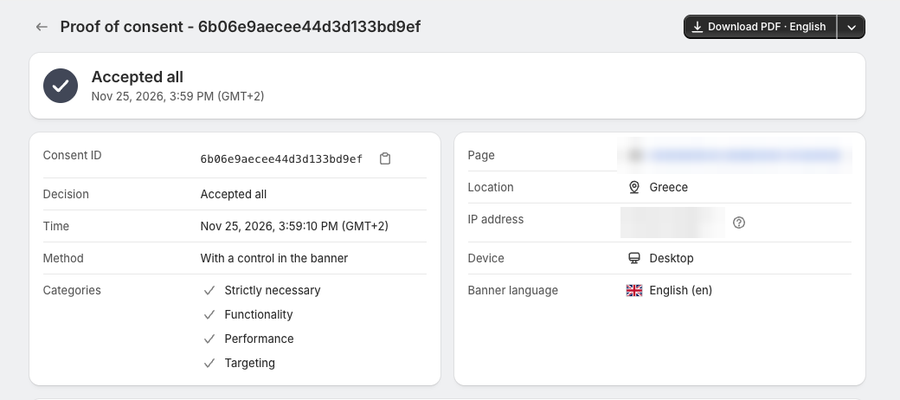
What the page shows
The choice
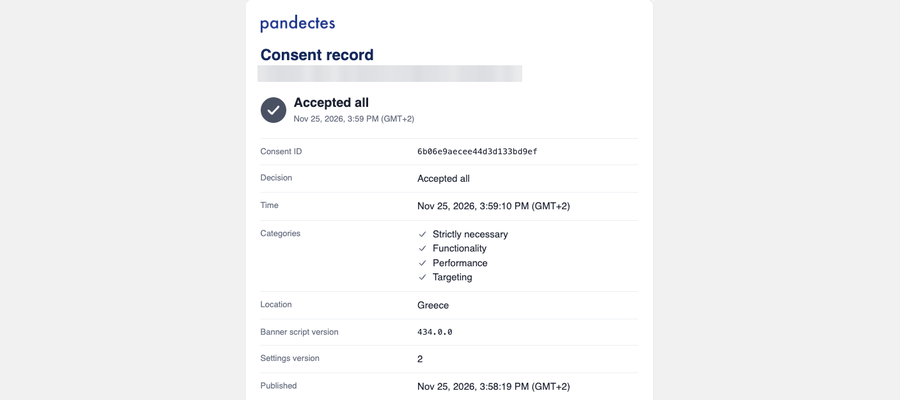
- Consent ID, with a button to copy it.
- Decision and Time (to the second).
- Method: how the choice was made, for example With a control in the banner, Implied by an action of the visitor (such as scrolling the page) or Through the store's JavaScript API.
- Categories: Strictly necessary, Functionality, Performance and Targeting, each shown as accepted or rejected.
- Sale or sharing of data, when your banner asks for it.
The visit
- Page: where the visitor gave consent.
- Location: the country. In the United States and Canada, the state, province or territory too.
- IP address: masked. Its last part is hidden, so the address doesn't identify the visitor.
- Device, Banner language (for example English (en)) and Customer ID (when the visitor was logged in).
A detail that wasn't recorded for a consent is simply left out.
Banner preview, settings and technical details (full proof only)
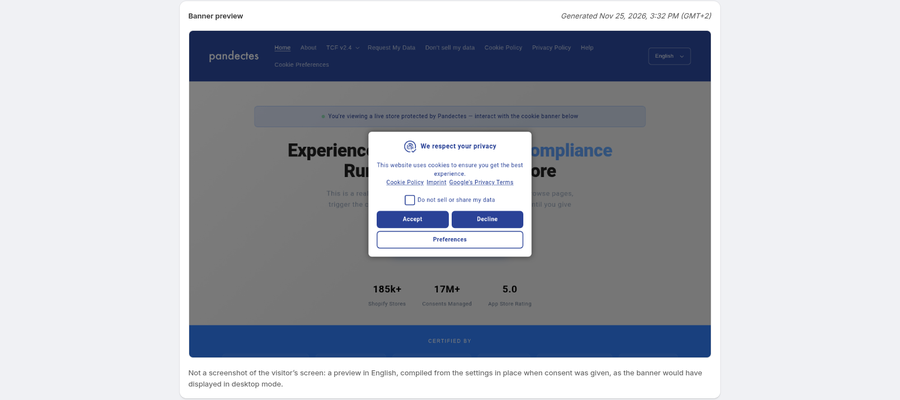
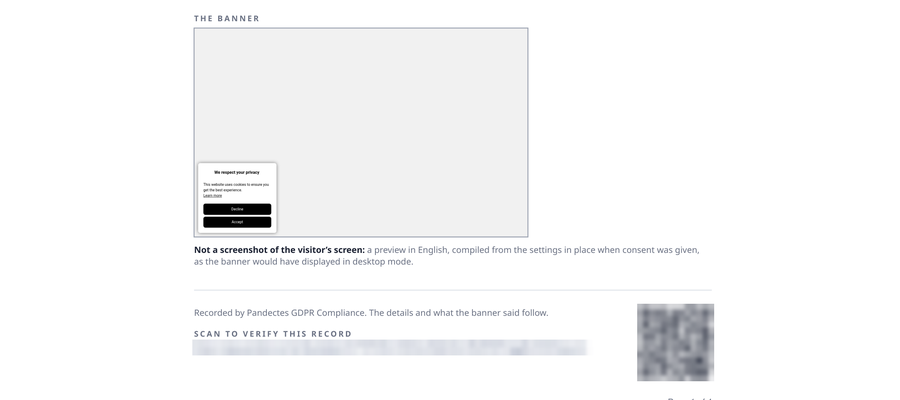
- Banner preview: the banner drawn from the settings in place when consent was given, in the visitor's language and device mode. It is a preview built from those settings, not a screenshot of the visitor's screen. While it is being drawn, the card shows Drawing the banner.
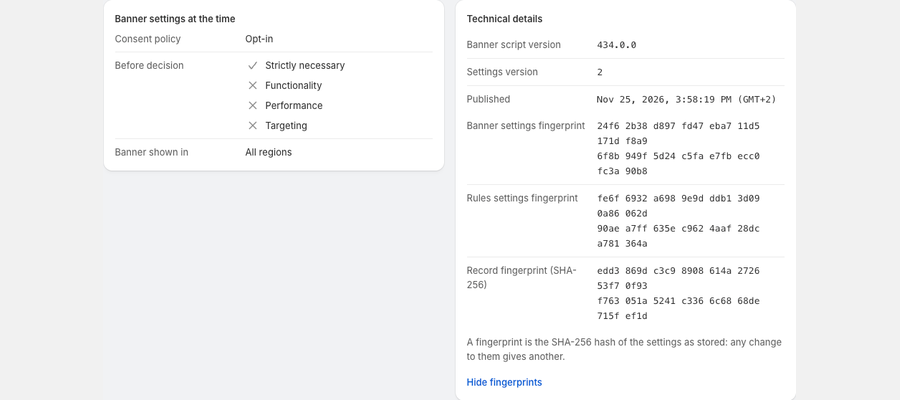
- Banner settings at the time: the Consent policy (Opt-in, Opt-out, Automatic or Custom), what each category did Before decision (Allowed or Blocked), and the regions where the banner was shown.
- Technical details: the Banner script version, the Settings version and when it was Published. Click Show fingerprints to see the SHA-256 fingerprints of the settings and of the record. Any change to the settings gives a different fingerprint. Click Hide fingerprints to fold them away again.
Proof of consent or consent record
Proof of consent | Consent record | |
|---|---|---|
When | The consent names a banner settings version Pandectes kept | No settings version (given before the version was kept, or off Enterprise) |
Choice and visit | Yes | Yes |
Banner preview and banner settings | Yes | No |
What the banner said (in the PDF) | Yes | No |
QR code and verification page | Yes | Yes |
PDF file name |
|
|
Download the PDF
- On the consent's page, click the arrow next to Download PDF and choose the Document language. It starts in your admin language.
- Click **Download PDF · **.
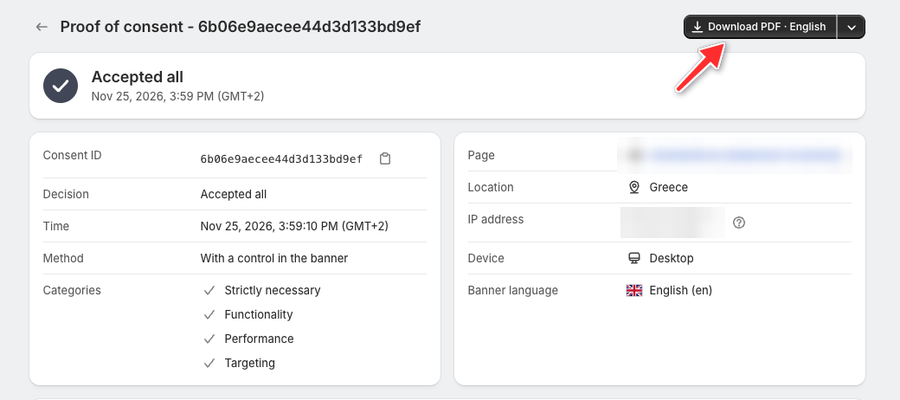
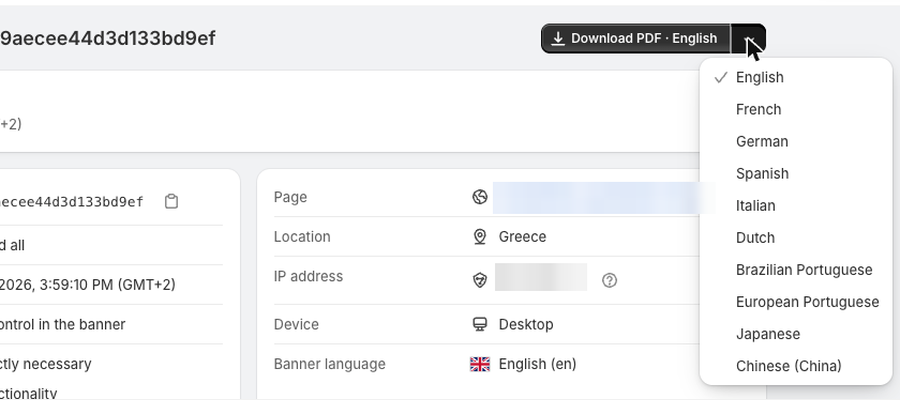
The PDF is available in English, French, German, Spanish, Italian, Dutch, Brazilian Portuguese, European Portuguese, Japanese and Chinese (China). The button then reads, for example, Download PDF · German.
What's in the PDF
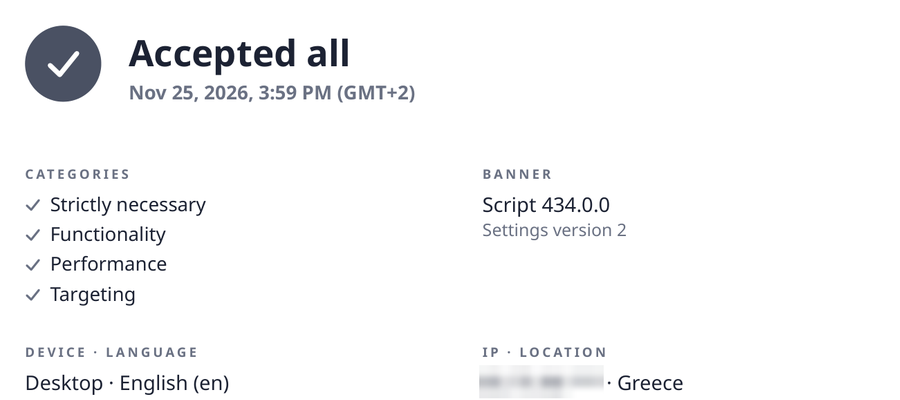
- Cover: the decision and its time, the categories, the device, the masked IP and location, and the QR code.
- Decision and visit: every detail recorded for the consent.
- Banner settings at the time and Technical details (full proof).
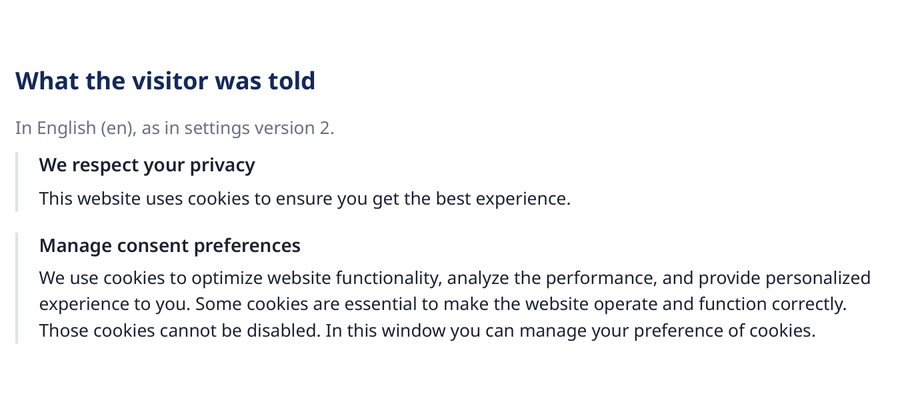
- What the visitor was told (full proof): the banner's notice, its preferences text and each category's description, in the chosen language when the banner had it.
- About this document: a short statement of what the document shows. It doesn't claim that your consent setup meets any law. That assessment stays with you as the store owner.
Verify a PDF with its QR code
At the bottom of the cover, Scan to verify this record shows a QR code and the same link written out (see the image above).
Anyone who scans it, with no Shopify login, sees the record as Pandectes holds it now: the decision, time, categories, location, the versions and the record fingerprint. The masked IP, the page and the device stay in the PDF only.
- If the record no longer matches the document, the page says The record differs from this document so the reader can compare each line.
- If the consent is no longer kept (for example after its retention period), the page says No consent record.
- Verification keeps working after your store leaves the Enterprise plan, so PDFs you already shared stay checkable.
Good to know
- Proof covers consents still in your consent log (about 13 months). Older consents are only in the monthly archives.
- Geolocation settings and your logo are not part of a settings version. The banner preview uses your logo as it is today.
- The banner preview is drawn over your store's home page as it looks now (or a plain page if the store is password protected).
- If you leave Enterprise, consents given after that have no settings version and get a consent record when you come back. Coming back to Enterprise starts a new settings version on your next publish.
Related articles
Updated on: 25/11/2026
Thank you!