
Scan Report
Your online store collects cookies from visitors and loads third-party scripts. Most merchants do not know exactly which cookies and scripts run on their site, and tracking them by hand is close to impossible.
With the built-in Cookie and Script Scanner, you can detect and review the tracking technologies running on your Shopify store.
What does the Pandectes Scanner do?
The scanner audits your storefront to identify:
- Cookies (first- and third-party)
- Scripts
- HTML5 local and session storage
- IFrames
- Tracking pixels
Based on the scan results, Pandectes builds a Cookie Declaration for your store, an essential part of complying with laws such as GDPR and CCPA/CPRA.
How does the scanner work?
The scanner behaves like a real visitor: it scrolls, clicks and moves between pages. This is designed to trigger the scripts and trackers that normally run when a customer browses your store, including cookies that do not appear on the first page load.
Where can I find my scan report?
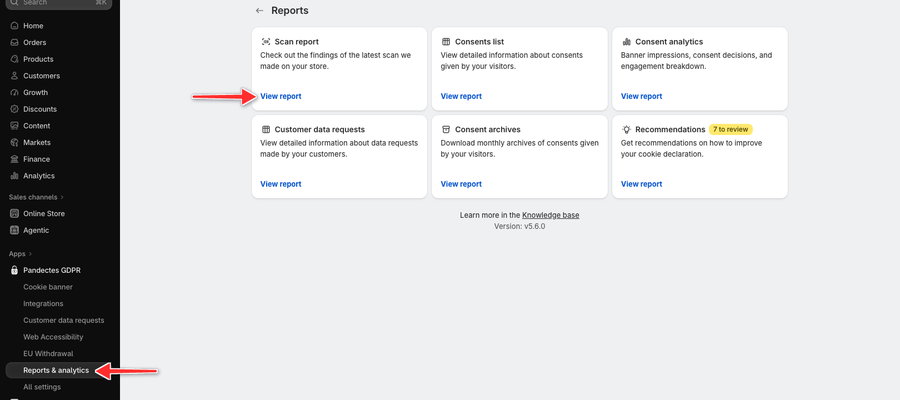
- In your Shopify admin, open Pandectes GDPR.
- In the Pandectes sidebar, click Reports & analytics.
- On the Scan report card, click View report.
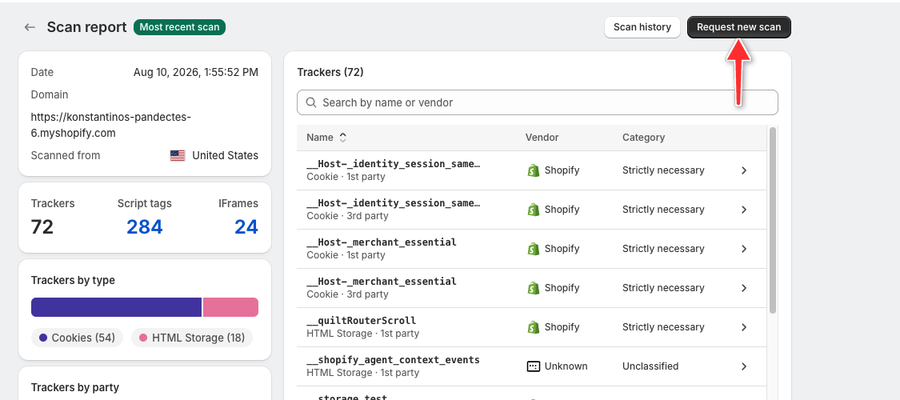
The report opens on your latest scan, marked Most recent scan. It shows the totals for Trackers, Script tags and IFrames, charts by type, party, category and vendor, and the full Trackers list.
How do I run a new scan?
- On the Scan report page, click Request new scan at the top right.
- In the New scan window, check the store domain and choose a Scan location (Enterprise).
- Click Start scan.
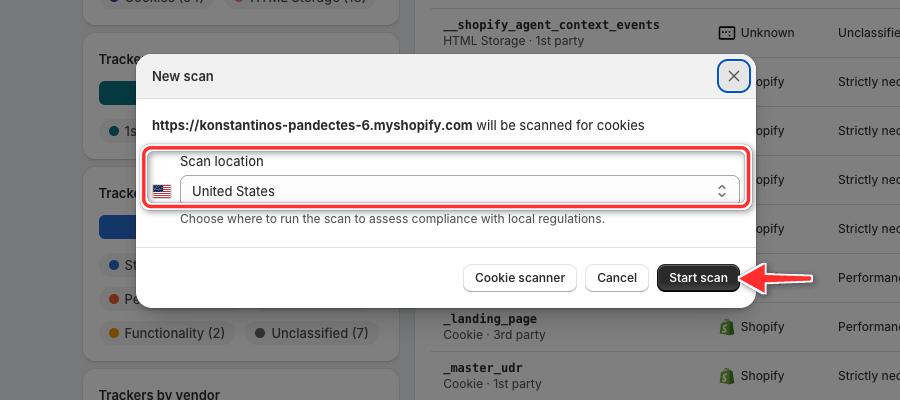
You can leave the page while the scan runs. The new report replaces the Most recent scan when it is ready.
Are scan results saved?
Yes. Every scan is stored in the Pandectes app. Click Scan history on the Scan report page to open an older scan, and use the latest one to keep your cookie declaration up to date.
Why this matters
Without a complete overview of your store's tracking technologies, you cannot be sure your banner and cookie declaration are accurate. Pandectes makes it easy to:
- Detect what runs on your store
- Generate a transparent cookie declaration
- Stay compliant with data privacy laws
For a full walkthrough of the report, see Store Scanning.
Updated on: 29/10/2026
Thank you!