
Customizing the layout of the banner (New Version)
Overview
The Layout tab controls how the cookie banner looks and behaves on your store: the dialog type, position, width, animation and buttons.
To open it, go to Cookie banner > Layout.
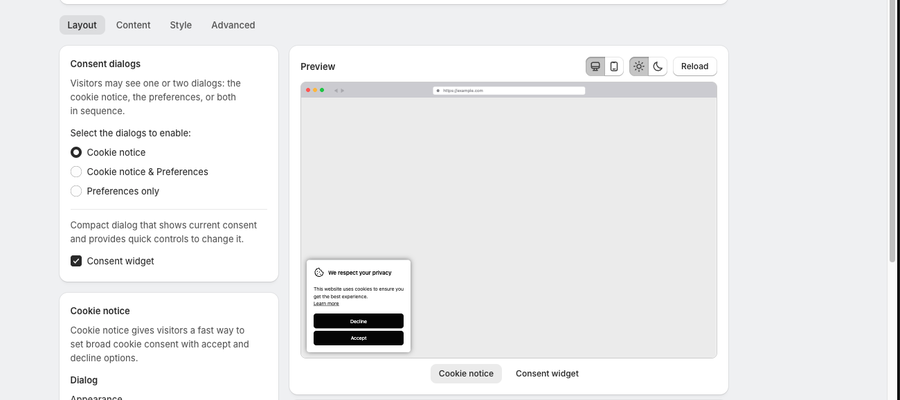
The settings work together with the Consent dialogs card, which decides whether visitors see a cookie notice, preferences, or both in sequence. The preview on the right updates as you change settings.
Consent dialogs
Under Select the dialogs to enable, choose:
- Cookie notice: a banner where visitors can quickly accept or decline cookies.
- Cookie notice & Preferences: a cookie notice first, with access to the preferences dialog for cookie categories.
- Preferences only: the preferences dialog opens straight away.
The Consent widget checkbox in the same card adds the compact widget that shows current consent.
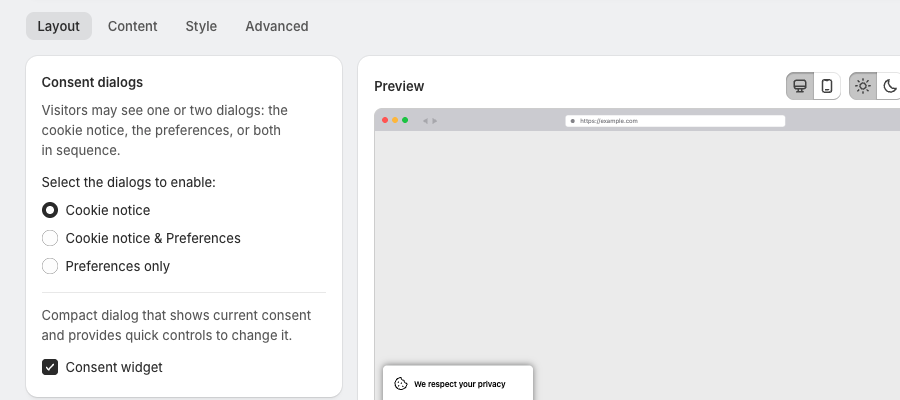
Cookie notice
The Cookie notice card is active when Cookie notice or Cookie notice & Preferences is selected.
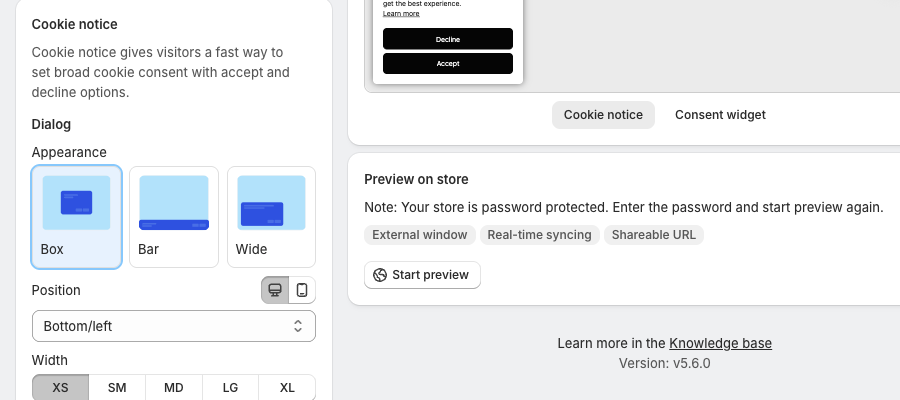
Appearance
- Box: a compact popup for quick consent choices.
- Bar: a full-width banner fixed to the top or bottom.
- Wide: a wider popup for longer consent and legal text.
Position
Where the banner appears. The options depend on the appearance, for example Top/left, Top/center, Top/right, Middle/left, Center, Middle/right, Bottom/left, Bottom/center and Bottom/right. For Bar, choose Top or Bottom. Use the desktop and mobile icons next to Position to set each separately.
Width
The overall size of the dialog: XS, SM, MD, LG or XL. Larger sizes leave more room for longer messages, logos and extra buttons.
Animation
The animation used when the banner appears and disappears, for example Fade.
Buttons
Under Select the buttons to enable, choose:
- Accept-Decline (recommended)
- Accept-only
- Decline-only
Layout
How the buttons are arranged: Horizontal, Horizontal & grouped, Horizontal & justified, or the vertical options where they fit.
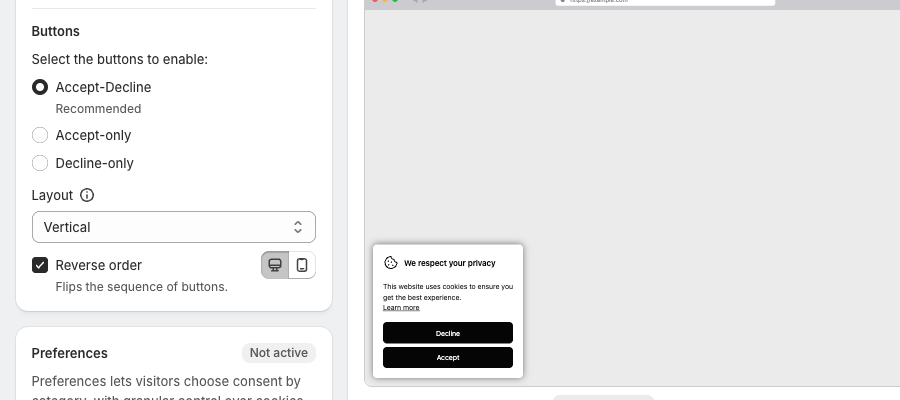
Reverse order
Flips the order of the buttons.
Preferences
The Preferences card is active when Cookie notice & Preferences or Preferences only is selected. Otherwise it shows Not active.
Appearance and Position
- Box: a compact popup for detailed, category-based consent choices.
- Drawer: a panel that slides in from the top or bottom.
- Sidepanel: a vertical panel fixed to the left or right side.
Position options follow the appearance: Box offers the same positions as the cookie notice, Drawer offers Top or Bottom, and Sidepanel offers Left or Right.
Buttons and Layout
Choose Accept-Decline, Accept-only or Decline-only, then pick the button layout (Vertical, Vertical & grouped, Horizontal, Horizontal & grouped, Horizontal & justified) and Reverse order if needed.
Select Require "Save preferences" so that Accept and Decline only update the category selections, and consent is stored after the visitor clicks Save preferences.
Categories & cookies
- Show category descriptions: a short explanation under each category.
- Show cookies list: lets visitors expand categories to view the related cookies.
- Use checkboxes instead of switches: shows checkboxes instead of toggle switches.
Animation
The same animation options as the cookie notice.
Summary
On the Layout tab you can set:
- Which consent dialogs visitors see
- The position and width of the banner
- Button choices and arrangement
- The structure of the preferences dialog
- Animations
Together these settings help the banner fit your store's design and visitor experience.
Updated on: 27/10/2026
Thank you!