
How to print or save the setup report as a PDF
Overview
The Setup report is a dated record of how your store shows the EU legal guarantee notice and GARAN labels right now. Save it as a PDF to keep for your records, or to share with your lawyer or team.
It is part of the Plus plan. On Basic, the Setup report page is locked and the Print / Save as PDF button is greyed out.
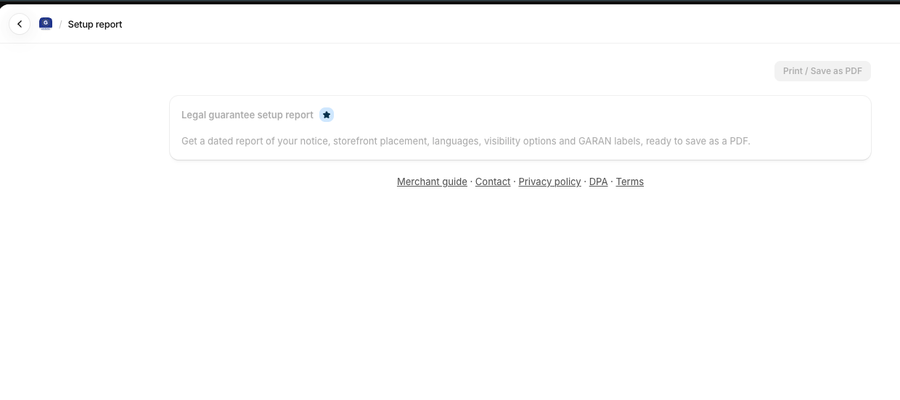
Open the report
- Open Shopify Admin > Apps > Pandectes EU Warranty & GARAN.
- Select Setup report in the app menu.
- Wait for the report to load. It reads your published theme, so it takes a moment.
What the report contains
Section | What it shows |
|---|---|
Legal guarantee setup report | The title and the date it was generated, with "All required steps done" or "Action needed" and a count such as "3 of 4 required steps done". |
Setup checks | Each check marked |
Storefront status | The published theme, the product page spot, the cart and cart drawer spots, and the product templates without the Legal Notice block. On Shopify Plus stores it also covers Legal Notice in checkout. |
Notice & label | Visibility ( |
Visibility options | Which products are hidden: digital products, gift cards, services, B2B buyers, and your tag, product type, vendor and collection rules. |
Garan label list | Counts of products with GARAN labels. |
The order confirmation email check shows what you marked on the dashboard (Added automatically or Added by hand), because Shopify does not let apps read your email template. See How to add the legal guarantee notice to your order confirmation email.
If the GARAN counts could not be loaded, the report says "GARAN counts couldn't be loaded". Reload the page before you save the PDF so the counts are complete.
Save it as a PDF
- Select Print / Save as PDF above the report.
- In the print window, choose Save as PDF as the destination.
- Save the file.
Run the report again after you change your setup. Each report carries the date and time it was generated.
Related articles
- How to install and set up Pandectes EU Warranty & GARAN
- Basic or Plus: which Pandectes EU Warranty & GARAN plan do you need?
- The EU legal guarantee notice and GARAN label explained
Updated on: 27/10/2026
Thank you!