
How to show the legal guarantee notice in the cart
Overview
The legal guarantee notice normally sits on the product page, under Add to cart. On the Plus plan you can also show it in the cart, where shoppers review their order before checkout. It can show on your cart page and, if your theme has one, in the cart drawer.
Cart placement is an addition, not a replacement. The product page notice stays where it is. The cart shows one notice for the whole cart, with the same link that opens the official notice.
What you need
- The app installed and the product page notice already working. If it is not, start with How to install and set up Pandectes EU Warranty & GARAN.
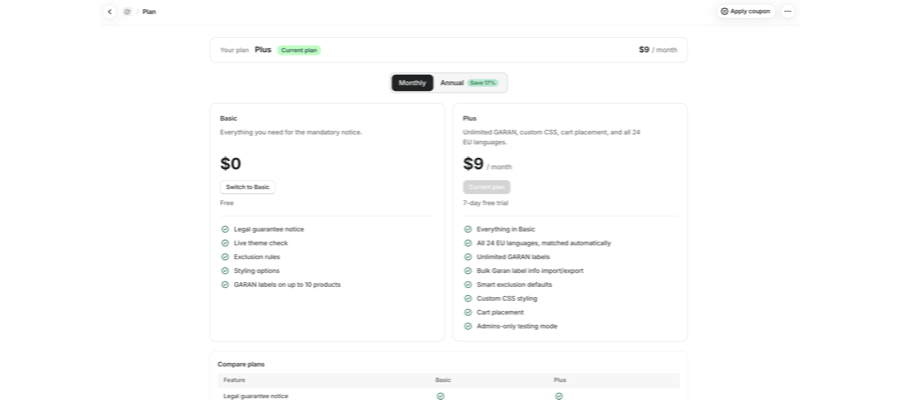
- The Plus plan. Cart placement is listed under Plus on the Plan page.
Upgrade to Plus
- Open Plan in the app menu.
- Choose Monthly or Annual at the top. Annual saves 17%.
- Under Plus, start the 7-day free trial.
Plus is $9 per month, and cart placement is one of several things it unlocks.
Add the notice to your cart page
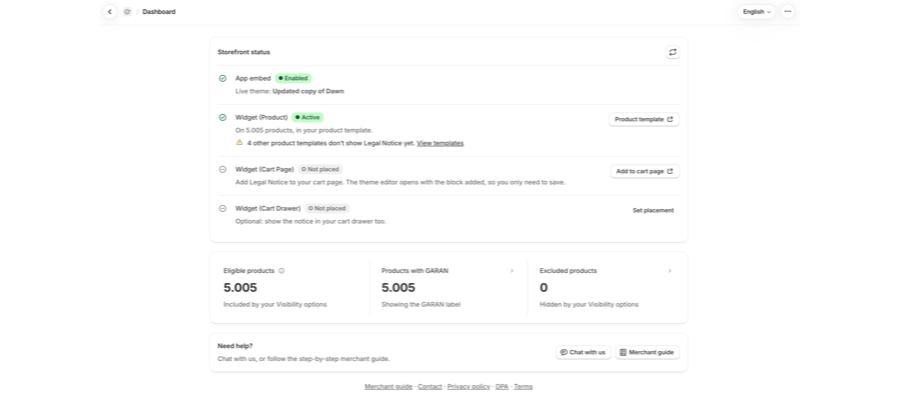
- Open Shopify Admin > Apps > Pandectes EU Warranty & GARAN. The Dashboard opens.
- On the Storefront status card, find the Widget (Cart Page) row. It reads
Not placeduntil the notice is on your cart page. - Select Add to cart page. The theme editor opens with the block already added, so you only need to save.
- Save the theme.
- Back in the app, select the refresh button at the top right of the card.
Add the notice to your cart drawer (optional)
If your theme opens a slide-out cart drawer instead of sending shoppers to /cart, the drawer is a separate surface.
- On the Storefront status card, find the Widget (Cart Drawer) row. It reads
Not placeduntil you set a placement. - Select Set placement. A panel opens with a Cart selector field.
- Enter a CSS selector for the element in your drawer where the notice should go, for example
.cart-drawer__footer. The notice appears inside the first element that matches. To find one, open your cart, right-click just above Check out, and choose Inspect. - No selector? Copy the code snippet shown under the field and paste it into your drawer where the notice should appear.
- Select Save. The row then reads
Saved.
A cart drawer cannot be checked automatically, so open it on your storefront to see the notice. To remove the placement later, select Change placement, then Reset. Your cart page is not affected.
Set up the cart page first, then the drawer. You can also preview the drawer without leaving the app: on Notice & label, use the switch at the top of the Preview card to choose Cart drawer.
Add the block manually
If the one-click route does not work for your theme, add the block yourself:
- Go to Online Store > Themes > Customize on your published theme.
- Change the template selector at the top of the editor to Cart.
- Select Add block, search for Legal, and choose Legal Notice (Pandectes EU Warranty & GARAN) on the Apps tab.
- Drag the block where you want the notice, usually near the subtotal or above the checkout button.
- Save the theme.
- Back in the app, select the refresh button on the Storefront status card.
Verify it on your storefront
- Add a product to your cart in a private window.
- Open the cart.
- In Always visible mode you see the official artwork. In Collapsed and As a popup you see the Legal guarantee trigger, and the artwork once you open it.
The cart shows one notice for the whole cart, not one per line item. That is intended.
If the notice does not appear in the cart
Work through these in order.
Check | What to do |
|---|---|
Your plan | If the Plus trial ended, the store drops back to Basic and cart placement is no longer included. |
The theme | The app reads your published theme. A block saved on a draft or a duplicate does not count. |
The row | The Widget (Cart Page) row still reads |
The master switch | Notice & label > Active controls every surface. Off means nothing shows anywhere. |
Admins only | This testing mode shows the notice in the theme editor and theme preview only, never on the live storefront. |
Markets | If Visibility options > EU markets only is on and you are browsing a non-EU market, nothing renders. |
If the product page notice is missing too, the cause is upstream of the cart. Start with Why the legal guarantee notice is not showing on a product page.
Related articles
- How to install and set up Pandectes EU Warranty & GARAN
- How to configure the legal guarantee notice
- How to show the legal guarantee notice in checkout (Shopify Plus)
- Basic or Plus: which Pandectes EU Warranty & GARAN plan do you need?
- The EU legal guarantee notice and GARAN label explained
Updated on: 27/10/2026
Thank you!