
How to show the legal guarantee notice in your shoppers' languages
Overview
The legal guarantee notice has two parts: the official artwork and the texts around it, such as the Legal guarantee trigger and the links.
- The artwork switches by shopper language automatically. The app holds the official notice in all 24 EU languages. You do not need to set anything up for it.
- The texts are written in your default language. To show them in other languages, add those languages on the Texts & languages page.
Plans
- Basic: one language, your default language.
- Plus: all 24 EU languages, matched automatically to the shopper.
Open the language settings
- Open Shopify Admin > Apps > Pandectes EU Warranty & GARAN > Texts & languages.
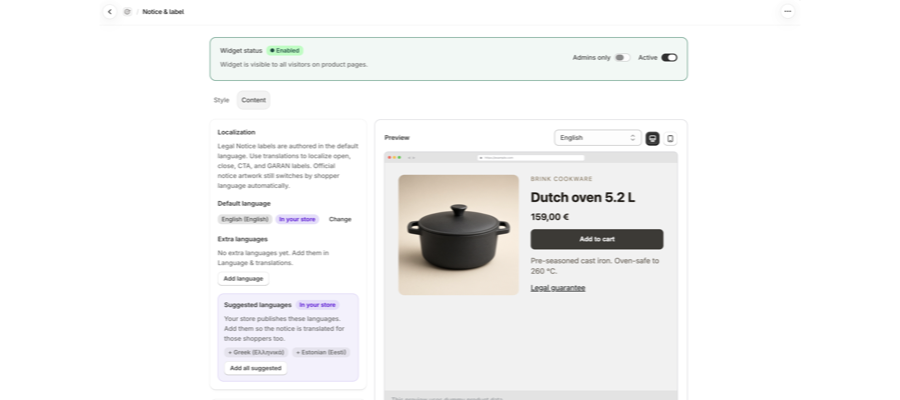
- Find the Localization card at the top.
Set the default language
Default language shows the language you write the texts in, for example English (English). An In your store badge means your store publishes that language. Shoppers see this language when your store's language has no texts of its own, and new languages start from its texts.
Select Change to pick another default language.
Add extra languages (Plus)
Under Extra languages, a new store reads "No extra languages yet."
- Select Add language and pick an EU language. Shoppers see our standard texts in it until you save your own.
- Or use the Suggested languages box. It lists the languages your store already publishes, each marked
In your store. Select a language, for example Add Greek, or select Add all suggested to add them all at once. - Select Remove next to a language to take it off again.
Adding the languages your store publishes means shoppers browsing in those languages see translated texts too.
On Basic, the box says "Your store publishes these languages. Upgrade to a paid plan to translate the notice for them too."
Choose how the language is detected (Plus)
Language detection decides which language a shopper gets:
- From store locale: the language your store is shown in.
- From browser preferences: the shopper's browser language, if you have added it.
Edit the texts per language
The Texts card shows which language you are editing, for example Editing English (English).
- Choose the language you want to edit.
- Change the fields you need: Link to open the notice, Close button, Your Europe link (notice), Your Europe link (GARAN), Show full GARAN label, Hide full GARAN label, Guarantee details, and Notice image description. On Shopify Plus stores there is also Button on the checkout card.
- Leave a field empty to use our standard text, shown in grey as the placeholder. The defaults are already translated, so blank is the right answer for most stores.
Each field is capped at 200 characters. Field details: How to configure the legal guarantee notice.
Check the result in the preview
The Preview on the right has a language picker with flags. It lists the languages you have enabled. Pick one to see the notice the way shoppers in that language see it. Use the switch at the top of the card to preview the Product page, the Cart drawer, or, on Shopify Plus stores, Checkout. The preview uses sample product data.
To check it on the storefront, switch your store to that language and open a product page.
Related articles
- How to configure the legal guarantee notice
- Basic or Plus: which Pandectes EU Warranty & GARAN plan do you need?
- The EU legal guarantee notice and GARAN label explained
Updated on: 27/10/2026
Thank you!