
How to fix the banner hiding behind theme elements (New Version)
Overview
The banner renders as the pandectes-cmp web component. Theme CSS does not style it the same way as the Legacy #pandectes-banner element.
Sticky headers, announcement bars, chat buttons, and some apps use a very high z-index. If they sit above the banner, visitors cannot click Accept or Decline.
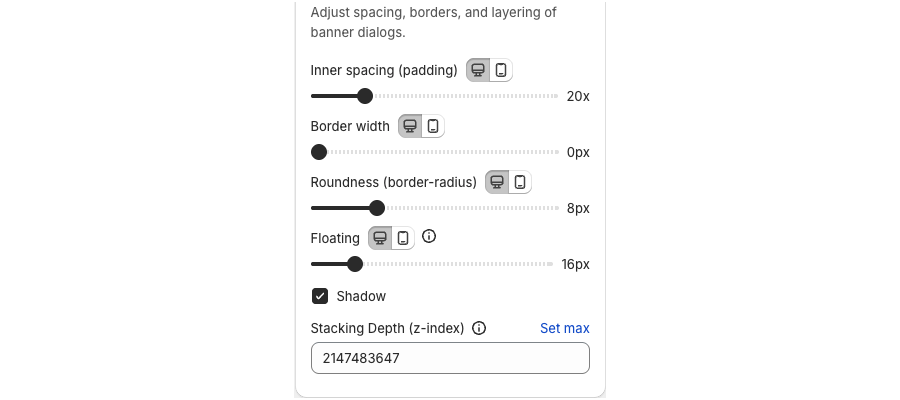
On the New Banner, raise stacking order under Cookie banner > Style (Stacking Depth (z-index)). The maximum value is 2147483647.
Before you start
- Confirm the banner is enabled (or enabled for admins) and that Pandectes Core is on in the theme.
- Reproduce on the storefront, not only in the in-app preview, because preview chrome is different from the live theme.
Raise z-index in Style
- Open Shopify Admin > Apps > Pandectes GDPR Compliance.
- Go to Cookie banner > Style.
- Scroll to Stacking Depth (z-index), below Enable dialog shadow.
- Enter a value higher than the overlapping element (often
999999), or click Set max for2147483647. - Save.
- Refresh the storefront (hard refresh) and try Accept / Decline again.
If Style is not enough
Add a rule under Style > Custom styling. Scope it to the web component. See Custom styling with CSS.
Example:
pandectes-cmp {
  z-index: 2147483647;
}
Other checks
- On mobile, a bottom Bar can sit under a sticky add-to-cart bar. Change mobile position or use a mobile override. See How to use different banner layouts on mobile and desktop (New Version).
- Chat widgets often use a high z-index. Move the consent widget to the opposite corner. See How to enable and customize the Consent widget (New Version).
- If buttons do not respond at all on iPhone, a theme script may be capturing taps. See The banner or the application, in general, is not working, what can I do?.
Related articles
- How to customize banner style, colors, logos, and buttons (New Version)
- My banner is not showing up: Troubleshooting
Updated on: 27/10/2026
Thank you!