
How to hide the legal guarantee notice on gift cards, digital goods and other products
Overview
By default, Pandectes EU Warranty & GARAN shows the legal guarantee notice on your physical products. Some products should not show it. You control which ones on the Visibility options page.
Why exclusions matter
The legal guarantee notice is meant for physical goods sold to consumers. Showing it on exempt goods, such as gift cards, digital goods, services or B2B items, can create compliance risk. Review which of your products fall into these groups.
Where to find it
Open Shopify Admin > Apps > Pandectes EU Warranty & GARAN > Visibility options. The banner at the top, Automatic exclusions protect compliance, sums up what the page does.
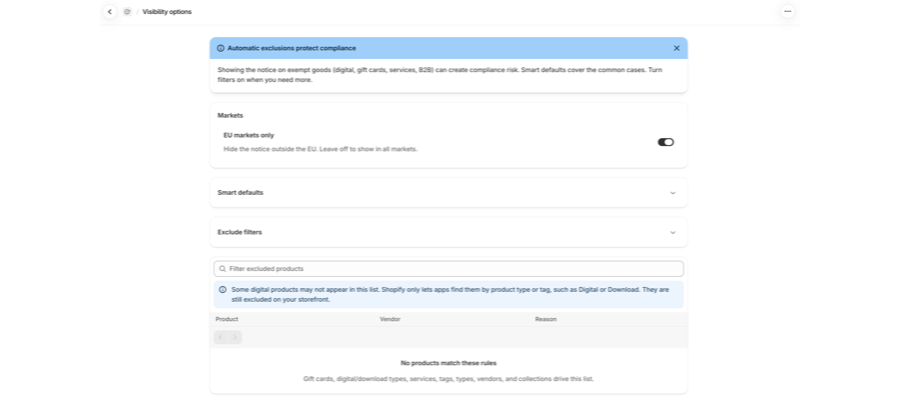
The page has five parts: Markets, Draft & password-protected products, Automated filters, Exclude filters, and the list of excluded products.
Markets
EU markets only hides the notice outside the EU. Leave it off to show the notice in all markets.
Automated filters Plus
Choose the product types in which you want to hide the guarantee notice and GARAN label. These toggles hide the notice automatically:
Toggle | What it matches |
|---|---|
Digital products | Product type or tag Digital or Download. |
Gift cards | Shopify gift card products. |
Services | Product type contains "Service". |
B2B / wholesale | Products sold only through wholesale or B2B channels. |
Draft & password-protected products | Always on, marked Automatic. Unpublished and draft items are never shown the notice. |
Automated filters are part of the Plus plan and show a Plus star on Basic. Until you upgrade, the notice is not hidden automatically on these product types, so exclude those products with Exclude filters below. Draft & password-protected products are always excluded, on every plan.
Exclude filters
Your own rules, available on every plan. Products matching any selected Tag, Product type, Vendor, or Collection do not show the legal guarantee notice or GARAN on the storefront.
Example: hide gift cards on Basic
On Basic, gift cards are not hidden automatically. To hide them:
- Open Visibility options.
- Expand Exclude filters and select Product type
giftcard. - Save your changes.
Use the same approach for digital goods or services, for example with a Tag or Product type you already use for them.
The excluded products list
Below the cards, the table lists every product where the notice is hidden, with Product, Vendor, and Reason columns. The Reason column names the rule that hid it. This is the fastest way to answer "why is the notice missing on this product?". Use Filter excluded products to search the list. With no rules yet, it reads No products match these rules.
Some digital products may not appear in this list. Shopify only lets apps find them by product type or tag, such as Digital or Download. They are still excluded on your storefront.
The Excluded products tile on the Dashboard shows how many products are hidden.
Verify the exclusion
- On Visibility options, find the product in the excluded products list and check its Reason.
- Open the product page on your storefront in a private window.
- Look under Add to cart. The legal guarantee notice should not appear.
Related articles
- How to configure the legal guarantee notice
- Basic or Plus: which Pandectes EU Warranty & GARAN plan do you need?
- The EU legal guarantee notice and GARAN label explained
- Why the legal guarantee notice is not showing on a product page
Updated on: 27/10/2026
Thank you!